// 10-second answer
cloudd is Apple's iCloud sync coordinator on Mac. It helps keep iCloud Drive, Photos, Notes, Reminders, Contacts, Calendars, Keychain, and CloudKit app data updated across your devices. High CPU, disk, or network activity often means iCloud is catching up after setup, migration, macOS updates, iCloud sign-in, or large file/photo changes. Treat it as stuck only when activity runs for days with no visible sync progress.
- Did you set up, migrate, update, or sign into this Mac in the last 72 hours?
- Does Finder, Photos, or System Settings show iCloud sync progress?
- Is network data moving while
clouddis active? - Has the same activity lasted more than 3-7 days with no progress?
// jump to
// fast scan
| Question | Answer |
|---|---|
| What it is | Apple's iCloud and CloudKit sync coordinator |
| When it is normal | Setup, migration, macOS update, iCloud sign-in, large file/photo changes |
| When it is a problem | Sustained high CPU for days with no visible sync progress or network transfer |
| Quick fix path | Confirm progress → wait if syncing → check storage/network → restart once → sign out only as last reset |
Most readers arrive here because Activity Monitor shows cloudd near the top while iCloud feels stuck or the Mac is warm. The useful question is not "how do I kill cloudd?" It is "is iCloud making progress, or is it retrying the same failed work?"
This guide keeps the diagnosis Apple-native first: Activity Monitor, Finder, Photos, System Settings, Safe Mode, and one last-resort iCloud sign-out. Optional BundleHunt tools appear only where they match the specific problem: storage visibility, Wi-Fi instability, RAM pressure, multi-daemon visibility, or workspace cleanup.
Disclosure: BundleHunt sells MacPilot, Disk Space Analyzer, Memory Booster, WiFiRadar Pro, and AppKiller and earns a commission on qualifying purchases. Free macOS tools are listed first; paid tools are optional visibility and workflow aids, not required fixes.
What cloudd Does
Cloudd coordinates iCloud sync across Drive, Photos, Notes, Reminders, Contacts, Calendars, and third-party CloudKit apps — it is the broadest of the iCloud processes and appears in Activity Monitor whenever any of these services is active. High cloudd CPU with visible Finder or Photos progress is working, not stuck.
cloudd is a macOS system process involved in iCloud and CloudKit syncing. You may see it in Activity Monitor when your Mac is uploading, downloading, comparing, or reconciling iCloud data tied to your Apple Account.
Observed behavior
You can observe cloudd when:
- Activity Monitor shows
clouddnear the top of the CPU tab. - The Mac gets warm or fans run while the desktop appears idle.
- The Network tab shows iCloud-related traffic.
- iCloud Drive, Photos, Notes, Reminders, Contacts, or Calendar changes lag behind other devices.
- System Data or local iCloud caches grow while sync catches up.
What the observable pattern means
Apple documents iCloud Drive as the service that keeps files and folders up to date across devices, and Activity Monitor exposes the local CPU, disk, and network work happening on the Mac. When cloudd rises during that work, the observable pattern points to iCloud coordination rather than proving a specific internal task. For iCloud Drive, it often appears alongside bird, which is tied to local file-provider state, and nsurlsessiond, which can handle network transfer work.
If the hot process is Photos-related, compare this article with photoanalysisd and mediaanalysisd. Those processes are associated with local media analysis; cloudd is associated with iCloud sync.
Why cloudd Uses High CPU, Disk, or Network
Cloudd high CPU separates into four distinct patterns — CPU-only, disk-only, network-with-transfer, and network-with-no-transfer — and each pattern points to a different next step. CPU high with no network transfer is the pattern most likely to indicate a stuck sync loop requiring action.
High cloudd usage can mean CPU work, disk work, network transfer, or a local retry loop. Separate the signal before you fix anything.
cloudd high CPU on Mac
High CPU is often expected during or after:
| Trigger | What is happening | What to do |
|---|---|---|
| New Mac setup or Migration Assistant | macOS may compare local and iCloud data | Wait if progress is visible |
| macOS update | iCloud services may rebuild local state | Wait 24-48 hours |
| Apple Account sign-in | Services may re-authenticate and resync | Keep the Mac plugged in |
| iCloud Drive enabled | Files and placeholders may be reconciled | Check Finder sync status |
| iCloud Photos enabled | Photo metadata and originals may sync | Check Photos status too |
| Large Desktop/Documents move | iCloud Drive may upload files and reconcile records | Stop moving more files until it settles |
Apple Silicon Macs may make this work less noticeable because their hardware and thermal management handle background activity differently. Intel Macs are more likely to spin fans during the same sync burst. Either way, Activity Monitor is only the starting point; a hot Mac can also come from Spotlight, Photos analysis, Time Machine, browser tabs, or kernel_task.
If the Mac feels slow because cloudd, Photos analysis, Spotlight, and normal apps are all competing for memory, check Activity Monitor's Memory tab before resetting iCloud.

Full feature list
Vendor-stated capability areas include memory-pressure display, per-process memory review, and memory cleanup controls. For cloudd troubleshooting, the relevant use case is visibility: confirm whether background daemons or foreground apps are creating pressure before resetting iCloud.
Disclosure: BundleHunt sells this; we earn a commission.
Optional tool: Memory Booster on BundleHunt is relevant when the issue is RAM pressure around the sync workload, not iCloud sync itself. It shows memory pressure and helps reclaim inactive memory on smaller Macs when background processes push the system into swap.
cloudd high disk usage
Disk activity is expected when iCloud Drive downloads originals, creates placeholders, compares file versions, or writes temporary sync state. It becomes a problem when the Mac is almost full, because iCloud may retry downloads it cannot complete.
Start with System Settings → General → Storage. If the mystery is System Data, use how to reduce System Data on Mac before deleting anything from Library folders. If the growth looks like snapshots rather than iCloud cache, read APFS snapshots explained.
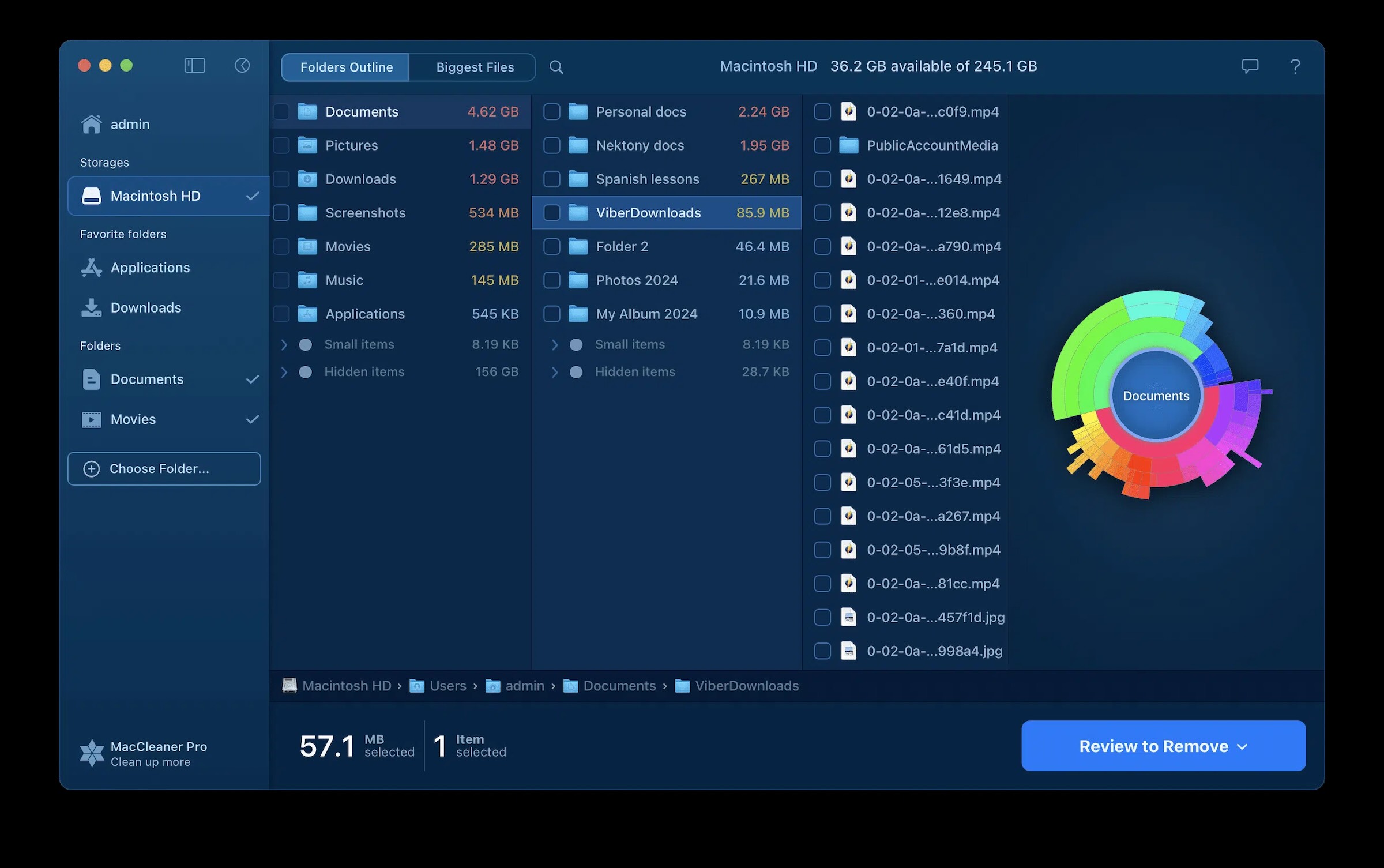
Full feature list
Disk Space Analyzer generates an interactive visual breakdown of disk usage by folder and file type, going significantly beyond the System Settings Storage view, which groups large volumes of space under opaque labels. It scans both the startup volume and external drives, identifies large app containers, iCloud Drive caches, Photos library sizes, downloads, and hidden system data, and presents results as a navigable treemap and sortable folder list. This is especially useful when cloudd high disk usage coincides with confusing System Data figures, because it can isolate whether iCloud local caches or APFS snapshots are the actual space consumers. It does not modify or delete anything without explicit user action.
Disclosure: BundleHunt sells this; we earn a commission.
Optional tool: Disk Space Analyzer on BundleHunt is relevant when cloudd appears to be looping because the disk is tight or System Data is unclear. It gives a visual breakdown of large folders, local iCloud Drive cache, Photos libraries, app containers, and hidden storage growth before you delete anything risky.
cloudd high network usage
Network activity is expected when iCloud Drive, Photos, Notes, Messages in iCloud, or app data is moving. If bytes are moving and sync indicators change, wait.
If network traffic repeatedly stalls, test another Wi-Fi network, pause VPN/proxy software, restart the router, and check Apple System Status. A network loop can look like a cloudd bug even when Wi-Fi instability is the real cause.
cloudd high CPU with no network activity
This is the pattern to inspect. If CPU is high, disk is active, and network transfer is near zero, cloudd may be resolving local state, retrying a failed record, or blocked behind a related process such as bird.
Also check Spotlight. mds_stores and Spotlight storage can spike after large iCloud downloads because newly downloaded files must be indexed locally.
If cloudd is only one hot process among several daemons, treat it as a system-visibility problem before treating it as an iCloud reset problem.
Is cloudd Safe?
Cloudd is a signed Apple system process (verify via Apple's developer documentation if you need to confirm process legitimacy) — 100% CPU in Activity Monitor means one fully utilized core, not a system-wide meltdown. Seeing cloudd high in Activity Monitor is not malware evidence; it reflects active iCloud coordination.
Yes. cloudd is part of macOS and should not be deleted, disabled, or replaced. A process named exactly cloudd running from Apple's protected system locations is expected on Macs using iCloud.
What not to infer:
- Seeing
clouddhigh in Activity Monitor does not prove malware. - Seeing 100% CPU does not mean the whole Mac is at 100%; Activity Monitor can show one fully used core as 100%.
- Force-quitting
cloudddoes not permanently disable iCloud; macOS relaunches required system agents. - A warm Mac overnight does not automatically mean something is broken. See why MacBook fans run at night for the broader overnight-work pattern.
Normal vs Stuck cloudd Behavior
The boundary between normal and stuck cloudd shifts with library size — a week of sustained activity is still plausible for a large Photos or iCloud Drive migration if progress is visible. The trigger for action is no visible progress after 3–7 days, not high CPU alone.
| Normal cloudd behavior | Stuck cloudd behavior |
|---|---|
| New setup, migration, update, or iCloud sign-in happened in the last 24-72 hours | No recent iCloud change, but CPU stays high for more than 3 days |
| Finder or Photos shows changing progress | Same file or Photos status never changes across restarts |
| Network data is moving | CPU is high while network transfer is near zero |
| Large iCloud Drive or Photos library is syncing | Free disk space is below 10-15 GB and downloads keep retrying |
| Apple Silicon Mac stays responsive while sync runs | Intel Mac stays hot for days with no visible progress |
For a large iCloud Photo Library or a new Mac migration, a week can still be plausible if progress is visible. For a small Notes/Calendar-only setup, several days of constant high CPU is less plausible.
How to Tell If cloudd Is Stable
Cloudd stability means returning to idle baseline — under 5–10% CPU during light use — not disappearing from Activity Monitor entirely. A stable cloudd still appears during iCloud Drive edits and Photos changes; total absence is not the goal.
cloudd is stable when it returns to low background usage; it is not "fixed" in the sense of being gone. The daemon should remain available because iCloud still needs it.
Use Activity Monitor for a short verification window:
- Open Activity Monitor → CPU.
- Sort by % CPU.
- Watch
clouddthrough an idle period plus a few normal iCloud actions. - Check the Network tab if CPU rises.
Classification:
| Activity Monitor result | Status | What it means |
|---|---|---|
cloudd near the lower end of Activity Monitor compared with active apps | Normal | No current sync or retry loop |
cloudd spikes only while using iCloud Drive, Photos, or adding files | Expected | iCloud is responding to real work |
cloudd high CPU plus active network throughput | Working | Active sync, not automatically a problem |
cloudd remains prominent with no network transfer | Unresolved | Possible stuck sync loop |
cloudd high CPU with no visible progress for days | Stuck | Use the fix path below |
Final rule: low CPU + no sustained fan + no ongoing iCloud UI progress means normal. High CPU + visible transfer or progress means working. High CPU + no progress for days means stuck.
cloudd Decision Tree
Steps 1–3 of the decision tree resolve the majority of cloudd cases — the active process is expected after a recent Mac change and just needs time to finish. Steps 7–10 are for situations where multiple checks confirm a genuine stuck loop lasting more than 3–7 days.
Use this as the single flow. If a line answers your case, stop there.
- IF
clouddis not near the top of Activity Monitor → THEN troubleshoot the actual top process → ELSE continue. - IF CPU is high after setup, migration, macOS update, iCloud sign-in, or a large file/photo change → THEN plug in the Mac and wait 24-72 hours → ELSE continue.
- IF Finder or Photos shows changing sync progress → THEN wait → ELSE continue.
- IF disk activity is high and free space is below 10-15 GB → THEN free disk space before touching iCloud settings → ELSE continue.
- IF network activity is high and data is moving → THEN keep stable Wi-Fi and power → ELSE continue.
- IF network activity is high but repeatedly stalls → THEN test another network, pause VPN/proxy tools, and check Apple System Status → ELSE continue.
- IF no network activity is visible but CPU remains high → THEN restart once and recheck after 30 minutes → ELSE continue.
- IF
birdis also high → THEN follow thebirdprocess guide before resetting all iCloud → ELSE continue. - IF Photos daemons are also high → THEN follow
photoanalysisdormediaanalysisdbefore touching iCloud → ELSE continue. - IF the issue has lasted more than 3-7 days with no progress → THEN use the fix path below.
Do NOT Act If
Toggling iCloud services while unsynced files exist only on this Mac risks local-only data disappearing when the service rebuilds. Confirm data is either already in iCloud or backed up externally before toggling any iCloud service.
Do not force-quit, toggle iCloud services, or sign out of iCloud if:
- This is a new Mac setup, migration, or macOS update from the last 24-72 hours.
- Finder, Photos, or System Settings shows active progress.
- You are on battery and about to leave; let the Mac finish later while plugged in.
- You have unsynced files sitting only on this Mac and no backup.
- You do not know whether important Notes, Reminders, Desktop, or Documents data is local or in iCloud.
The safest action in those cases is to connect power, keep Wi-Fi stable, and give macOS a full idle window.
Risks Before You Fix cloudd
Library resets — deleting iCloud, Photos, or Mobile Documents folders — are the highest-risk cloudd fix and should only be attempted with a current external backup and a specific Apple Support instruction. The safer escalation path is always Fix 8 (sign out and back in) before any library-level deletion.
iCloud sign-out risk
Signing out of iCloud is effective but disruptive. iCloud data remains on Apple's servers, but this Mac may remove local copies depending on the choices you make during sign-out. When you sign back in, macOS may re-download data, rebuild local indexes, and temporarily use more CPU, network, and storage.
Toggling system services risk
Turning off iCloud Drive, Photos, Notes, or other iCloud services can pause sync and remove local access to cloud-backed data. Turning the service back on can trigger a fresh comparison.
Library reset risk
Do not delete iCloud, CloudKit, Photos, or Mobile Documents library folders as a first-line fix. Library resets can cause reindexing, duplicate conflicts, re-downloads, and temporary storage spikes. Use them only with a current backup and a specific Apple Support instruction.
How to Return cloudd to a Normal State
The eight fixes escalate in disruption from a five-minute Activity Monitor check to a full iCloud sign-out that can take hours to rebuild. Stop at the first fix where cloudd returns to idle baseline — most genuine stuck cases resolve at Fix 3 (restart) or Fix 4 (free disk space).
These fixes are ordered from least disruptive to most disruptive. The goal is to stop a stuck sync loop, not to remove cloudd from macOS.
Fix 1: Confirm cloudd is the process
Effect: diagnostic only. Temporary or permanent: neither.
- Open Applications → Utilities → Activity Monitor.
- Click CPU.
- Sort by % CPU.
- Select
cloudd. - Check CPU, Memory, Disk, and Network before deciding.
Apple's Activity Monitor separates system CPU, user CPU, disk, and network views. Do not rely on the CPU tab alone.
If Activity Monitor is noisy because dozens of user apps are open, close nonessential apps first, then measure cloudd again.
Fix 2: Check iCloud progress in Apple apps
Effect: confirms whether sync is progressing. Temporary or permanent: diagnostic.
- Open Finder → iCloud Drive.
- Look for cloud icons, progress circles, or stuck files.
- Open Photos, scroll to the bottom of Library, and read the status line.
- Open System Settings → [your name] → iCloud and check enabled services.
- Check Apple System Status for iCloud outages.
If progress is moving, wait. If the same file is stuck, move that file out of iCloud Drive only if you have a backup, wait 5 minutes, then move it back if needed.
Fix 3: Restart once
Effect: clears temporary process state and reconnects iCloud services. Temporary or permanent: temporary, but often enough.
- Save open work.
- Choose Apple menu → Restart.
- After login, wait 30 minutes with the Mac plugged in.
- Recheck Activity Monitor and Finder sync status.
Do not restart repeatedly. Repeated restarts can keep interrupting the same backlog.
Fix 4: Free disk space
Effect: removes a common iCloud retry-loop cause. Temporary or permanent: permanent if you remove real clutter; temporary if the disk fills again.
- Open System Settings → General → Storage.
- Keep at least 10-15 GB free, more if you are syncing a large Photos library.
- Empty Trash only after confirming you do not need the files.
- Move large non-iCloud files to an external drive if needed.
Fix 5: Stabilize the network
Effect: reduces failed sync retries. Temporary or permanent: permanent if the network was the root cause.
- Pause VPN or proxy software temporarily.
- Try a different Wi-Fi network or wired Ethernet.
- Restart the router if all devices are slow.
- Check whether iCloud works normally on another Apple device.
- If the issue only happens on one network, inspect signal strength and channel congestion.
Fix 6: Quit cloudd only for immediate relief
Effect: stops the current process instance; macOS relaunches it. Temporary or permanent: temporary.
- Open Activity Monitor.
- Select
cloudd. - Click the stop button.
- Choose Quit first. Use Force Quit only if Quit does not work.
- Let macOS relaunch it.
Use this for a video call, battery emergency, or urgent deadline. It does not repair sync state.
Fix 7: Use Safe Mode to isolate third-party load
Effect: tests whether startup software, VPN tools, cloud apps, or security extensions contribute. Temporary or permanent: diagnostic.
For Apple Silicon Macs:
- Shut down.
- Press and hold the power button until startup options appear.
- Select your startup disk.
- Hold Shift and click Continue in Safe Mode.
For Intel Macs:
- Restart.
- Immediately hold Shift.
- Release when the login window appears.
If cloudd behaves normally in Safe Mode but not after a normal boot, review login items, VPN tools, cloud-sync apps, security extensions, and background utilities.
Fix 8: Sign out of iCloud and back in
Effect: rebuilds local iCloud account state. Temporary or permanent: potentially permanent for stuck sync, but disruptive.
Use this only when the issue has lasted more than 3 days for a small sync set, or more than 7 days after a large migration, with no meaningful progress.
- Back up important local files.
- Open System Settings → [your name].
- Scroll down and click Sign Out.
- Choose to keep a local copy if you are unsure.
- Wait for sign-out to finish.
- Restart your Mac.
- Sign back in from System Settings.
- Keep the Mac plugged in and on stable Wi-Fi while iCloud rebuilds.
Expect temporary CPU, network, and storage spikes afterward. That is the rebuild, not necessarily a failed fix.
Related Cluster Guides
Each cluster guide addresses a different macOS background daemon — following the wrong guide wastes time on the wrong fix path. Use Activity Monitor to identify the top process first, then open only the guide that matches it.
Use these links to move through the macOS background-process cluster without guessing which daemon is responsible.
| If Activity Monitor shows... | Read this next |
|---|---|
bird with cloudd | bird Process on Mac Explained |
photoanalysisd | photoanalysisd High CPU Fix |
mediaanalysisd | mediaanalysisd Explained |
mds_stores or large Spotlight index | Why Spotlight Uses So Much Storage |
| System Data or purgeable storage growth | APFS Snapshots Explained and Reduce System Data on Mac |
| Heat or fans overnight but no single clear process | Why Your MacBook Gets Hot at Night |
| Several daemons at once | Best Mac Background Monitor Apps |
FAQ
The most common cloudd misconception is that 100% CPU means something catastrophic — it means one core is fully occupied, which is expected during active iCloud sync on a system with multiple cores. The useful metric is not the percentage but whether network transfer accompanies the CPU spike.
What does cloudd do on Mac?
cloudd helps coordinate iCloud and CloudKit sync between your Mac, iCloud, and your other Apple devices.
Why is cloudd using high CPU on my Mac?
Usually because iCloud is catching up after setup, migration, macOS update, iCloud sign-in, iCloud Drive changes, or Photos changes. If CPU stays high for several days with no progress, it may be stuck.
Can I delete cloudd?
No. Do not delete cloudd or related iCloud folders. Deleting sync state can trigger re-downloads, conflicts, reindexing, and temporary storage spikes.
Is cloudd malware?
Usually no. cloudd is a normal Apple process. High CPU alone is not malware evidence.
Can I stop cloudd?
You can quit it temporarily in Activity Monitor, and macOS will relaunch it. That can give short-term relief, but it does not permanently fix stuck iCloud sync.
Why does cloudd run at night?
macOS often schedules sync, indexing, backup, and analysis work while the Mac is idle and plugged in. That is why cloudd, Spotlight, Photos analysis, and Time Machine often appear during overnight heat or fan events.
What is the difference between cloudd and bird?
cloudd coordinates iCloud sync more broadly. bird is tied to iCloud Drive file state. If both are busy, the Mac is probably reconciling iCloud Drive files.
What if cloudd uses CPU but iCloud Drive is off?
Other iCloud services can still use it: Photos, Notes, Reminders, Contacts, Calendars, Keychain, Messages in iCloud, or third-party CloudKit apps.
Does signing out of iCloud delete my files?
Data already stored in iCloud remains in iCloud, but local availability can change on this Mac. Read Apple's prompts carefully and keep a backup before signing out.
How long should I wait before fixing cloudd?
Wait 24-72 hours after setup, migration, update, or large imports. For very large iCloud Drive or Photos libraries, a week can still be plausible if progress is visible. Act sooner only if the Mac is unusable, storage is critically low, or sync shows no progress.
Sources
- Apple Support: Set up iCloud Drive
- Apple Support: View CPU activity in Activity Monitor on Mac
- Apple Support: Quit an app or process in Activity Monitor on Mac
- Apple Support: Start up your Mac in safe mode
- Apple Support: Free up storage space on Mac
- Apple Support: If your iCloud Contacts, Calendars, or Reminders won't sync
- Apple: System Status
Last reviewed 2026-05-17.