// 10-second answer
Your MacBook commonly gets hot at night because macOS is catching up on background work while plugged in and idle. Common causes include iCloud sync, Photos analysis, Spotlight indexing, Time Machine/APFS snapshots, app updates, and sleep-wake maintenance. It is normal when CPU, disk, or network activity lines up with visible progress. Treat it as a problem when heat, fans, or battery drain continue for several nights with no identifiable process or progress.
- Did you update macOS, migrate, enable iCloud, import media, or reconnect Time Machine recently?
- Does Activity Monitor show a known daemon such as
cloudd,bird,photoanalysisd,mediaanalysisd, ormds_stores? - Is disk, network, or Photos/Finder progress moving while the Mac is warm?
- Has the same overnight heat continued for more than 3-7 days with no progress?
// jump to
// fast scan
| Symptom | Most likely cause | First check |
|---|---|---|
| Fans at night after iCloud changes | iCloud sync | Activity Monitor: cloudd, bird, Network tab |
| Warm after photo import | Photos analysis | photoanalysisd or mediaanalysisd |
| Storage shrinks overnight | APFS snapshots or Spotlight | Disk Utility snapshots, System Settings Storage |
| Wake events with lid closed | Power Nap / scheduled maintenance | pmset -g log and Battery settings |
| Slow next morning | RAM pressure or swap | Activity Monitor Memory tab |
Disclosure: BundleHunt sells MacPilot, Memory Booster, and Mac PowerSuite and earns a commission on qualifying purchases. Free macOS tools are listed first; paid tools are optional visibility and workflow aids, not required fixes.
Diagnostic Map
Overnight heat usually traces back to a specific process — iCloud, Photos, Spotlight, or Time Machine. Identify the daemon in Activity Monitor before changing any settings.
Start with the process, not the symptom. "Hot at night" is the broad thermal problem: the Mac may be warm, draining battery, slow the next morning, or occasionally spinning fans. If your only symptom is audible fan noise or repeated wake events, use MacBook Fans Run at Night after this map; this page is the cluster triage layer.
| Process or signal | What it usually means | Best next guide |
|---|---|---|
cloudd | iCloud service sync coordinator | What Is cloudd on Mac? |
bird | iCloud Drive file state | What Is bird on Mac? |
photoanalysisd | Photos still-image analysis | What Is photoanalysisd on Mac? |
mediaanalysisd | Photos video analysis | What Is mediaanalysisd on Mac? |
mds_stores | Spotlight index building | Why Spotlight Uses So Much Storage |
| Time Machine snapshots | APFS local snapshots | APFS Snapshots Explained |
pmset wake entries | Sleep maintenance or Power Nap | MacBook Fans Run at Night |
Free Diagnosis First
macOS ships every diagnostic tool needed to identify overnight heat — Activity Monitor, pmset, Disk Utility, and tmutil are free. Do not buy a monitoring app before running these four checks.
Step 1: Open Activity Monitor
Open Applications → Utilities → Activity Monitor and check four tabs:
- CPU: which process is actually working
- Memory: whether pressure is yellow/red or swap is rising
- Disk: whether macOS is writing indexes, snapshots, or caches
- Network: whether iCloud or update traffic is moving
If several daemons are active together and the Mac has 8 GB RAM, the issue may be pressure rather than one broken process.
Step 2: Check what woke the Mac
Use Terminal only if Activity Monitor does not answer the question:
pmset -g log | grep -i "wake"
Look for repeated wakes tied to maintenance, network, Time Machine, or power assertions. Do not change power settings until you know what is waking the Mac.
Step 3: Check storage and snapshots
If the symptom is "my Mac is hot and storage disappeared," inspect APFS snapshots and System Data before deleting caches.
tmutil listlocalsnapshots /
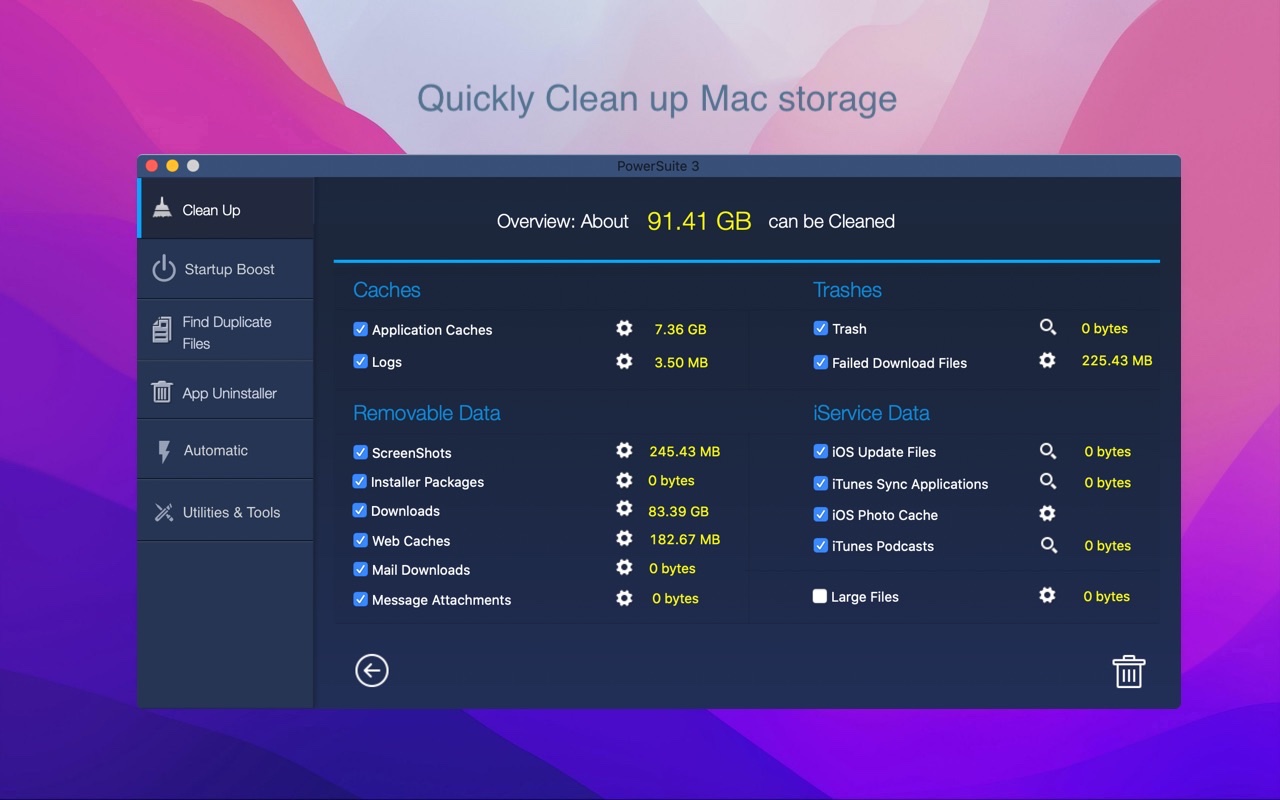
Apple says Time Machine local snapshots are stored on APFS disks and are normally deleted as they age or when space is needed. If storage remains confusing after native checks, Mac PowerSuite on BundleHunt is useful as an all-in-one cleanup and storage workflow tool for users who do not want to jump between multiple utilities.
Full feature list
Vendor-stated capability areas include storage cleanup, system-utility workflows, privacy cleanup, large-file review, startup item review, and duplicate scanning. For this heat cluster, the relevant use case is storage visibility when overnight heat appears alongside unexplained free-space loss. Check the current deal/vendor page before buying it for APFS snapshot or System Data workflows.
Disclosure: BundleHunt sells this; we earn a commission.
Step 4: Match the daemon to the guide
Do not kill random processes. Use the cluster guide for the daemon you actually see, then follow that post's normal/stuck classification.
If, after completing all four steps above, Memory pressure is still unclear or you want continuous menu-bar visibility overnight, Memory Booster on BundleHunt provides a quick RAM-pressure view; it is not a fix for iCloud, Photos, Spotlight, or Time Machine.

Full feature list
Vendor-stated capability areas include memory-pressure display, swap visibility, per-process memory review, and memory cleanup controls. For this heat cluster, the relevant use case is visibility: identify whether background daemons or foreground apps are the primary driver before changing sleep, sync, or Photos settings.
Disclosure: BundleHunt sells this; we earn a commission.
Do NOT Act If
Interrupting a macOS background task forces it to restart on the next idle window — extending, not ending, the overnight heat. The most common mistake is killing a daemon that was about to finish.
Do not reset services or delete data when:
- The Mac was set up, migrated, or updated in the last 72 hours.
- Finder, Photos, Time Machine, or iCloud shows visible progress.
- Network or disk activity is moving steadily.
- Time Machine has not completed a recent backup.
- You have not backed up data before a library repair or iCloud sign-out.
The most common mistake is interrupting legitimate catch-up work and forcing macOS to start it again the next night.
Overnight Heat Decision Tree
Overnight heat often resolves after a few idle windows once the triggering event is clear. A daemon that shows no progress after 3–7 days is the only case that requires intervention.
- IF the Mac is warm but Activity Monitor shows low CPU, low disk, and low network → THEN check hardware/charging/ambient heat → ELSE continue.
- IF a known daemon is active with visible progress → THEN keep the Mac plugged in and let it finish → ELSE continue.
- IF fans run only after media import, iCloud sign-in, Time Machine reconnect, or macOS update → THEN wait through 1-3 idle windows → ELSE continue.
- IF the same process is high for days with no progress → THEN use that daemon's fix guide → ELSE continue.
- IF multiple processes run together and Memory pressure is high → THEN close apps before sleep and reduce workload → ELSE continue.
- IF storage keeps shrinking → THEN inspect APFS snapshots, Spotlight, and System Data → ELSE continue.
- IF you cannot identify the daemon after native checks → THEN use a monitoring guide or escalate to Apple Support.
When BundleHunt Tools Help
Paid monitoring tools add value only when built-in macOS tools leave a specific visibility gap — RAM pressure display, hidden preference access, or Wi-Fi channel analysis. Activity Monitor solves the majority of overnight heat diagnoses without any third-party software.
Paid tools should appear only when they solve a specific visibility gap. For this broad heat page, that usually means RAM pressure, storage visibility, or hidden sleep/wake settings; daemon-specific fixes live in the linked process guides.
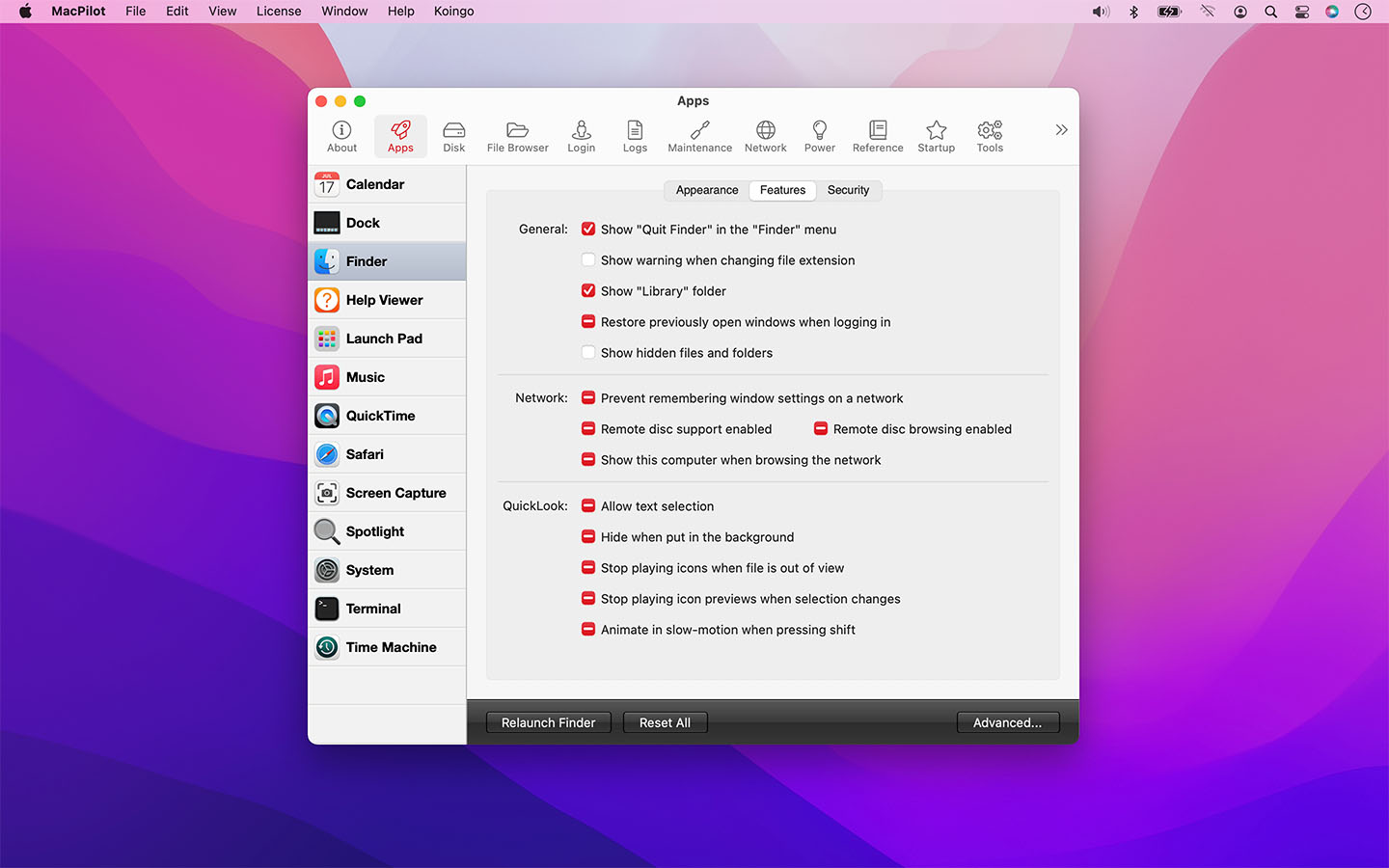
If the Mac keeps waking because of background scheduling and you want a GUI for hidden macOS behavior, MacPilot on BundleHunt can help inspect App Nap, Power Nap, and related system preferences without memorizing Terminal commands. It is not required for normal one-time indexing.
Full feature list
Vendor-stated capability areas include GUI access to hidden macOS preference categories. For overnight heat troubleshooting, the relevant use case is inspecting adjacent App Nap, Power Nap, wake, scheduling, Spotlight, Time Machine, or login-item settings when the same background pattern keeps recurring.
Disclosure: BundleHunt sells this; we earn a commission.
FAQ
Most overnight heat questions reduce to one of two scenarios: a known process catching up, or the same process repeating with no progress. If the heat has lasted fewer than 3 days and a recognizable daemon is active, it is almost certainly the first scenario.
Is it normal for a MacBook to get warm overnight?
Yes, if macOS is syncing, indexing, backing up, or analyzing media while plugged in. It is not normal if the same heat repeats for days with no progress or identifiable process.
Should I shut down my Mac every night?
Usually no. Sleep is fine. If a stuck daemon is causing heat, diagnose that daemon rather than using shutdown as a workaround.
Is Power Nap always bad?
No. Power Nap lets supported Macs perform some updates while asleep. It is only a problem if it creates unwanted wake, fan, or battery behavior.
Can a hot MacBook overnight damage itself?
macOS has thermal protections. Still, repeated unexplained heat is worth diagnosing because it can waste energy, wear battery cycles, and hide sync or storage problems.
Related Cluster Guides
- MacBook Fans Run at Night
- What Is cloudd on Mac?
- What Is bird on Mac?
- What Is photoanalysisd on Mac?
- What Is mediaanalysisd on Mac?
- APFS Snapshots Explained
- Why Spotlight Uses So Much Storage
- Reduce System Data on Mac
Sources
- Apple Support: About Time Machine local snapshots
- Apple Support: Turn Power Nap on or off for your Mac
- Apple Support: Search for anything with Spotlight
man pmset,man top,man tmutilon macOS
Last reviewed 2026-05-17. Verified against macOS Sequoia 15.4.