// 10-second answer
Our default recommendation is Migration Assistant over Thunderbolt for speed and reliability — free, built in, with timing that depends on data size, connection type, and source drive speed. Paid tools are for edge cases: failing source drives (AweClone), multi-volume layouts (Donemax Disk Clone), Windows-side PC migration before a Mac switch (Todo PCTrans), and post-migration cleanup (App Cleaner & Uninstaller).
- Is the source Mac's drive showing read errors or making unusual sounds?
- Does the source Mac have a custom partition layout (Boot Camp, dual macOS, separate Data volume)?
- Are you moving from a Windows PC rather than another Mac?
- Do you want to clean up migrated apps and their leftover files after transfer?
// jump to
Disclosure: BundleHunt sells AweClone, Donemax Disk Clone, Todo PCTrans, and App Cleaner & Uninstaller, and earns a commission on each. Free options are listed first by design.
Before you start
Ten minutes of preparation on the old Mac prevents most migration problems. Skip the backup step at your own risk — there is no undo after a reset. Do not wipe or sell the old Mac until you have used the new one for at least 48 hours and confirmed everything works.
Do these on the old Mac before touching Migration Assistant:
- Run a final Time Machine backup. System Settings → General → Time Machine → Back Up Now. This is your fallback if anything goes wrong mid-transfer.
- Update macOS on both Macs. Migration Assistant works best when both run the same macOS version, or the destination is newer. Do this the night before.
- Sign out of machine-count subscriptions. Adobe Creative Cloud (Help → Sign Out), Microsoft 365 (any Office app → Account → Sign Out), Figma, 1Password, Notion, Slack. Adobe and Microsoft count machine activations — if you don't sign out, the new Mac becomes activation #2 and may hit your limit. (verify current deauthorization steps for each service; flows change without notice)
- Deauthorize Apple Music and TV. Music.app → Account → Authorizations → Deauthorize This Computer. TV.app → same. These count against your 5-machine limit. (verify current deauthorization steps for each service; flows change without notice)
- Note Wi-Fi passwords not in iCloud Keychain. Local-only keychain items don't sync via iCloud. Write down any network passwords that only live on the old Mac.
- Inventory hardware-locked software. Pro audio plugins (Waves, Native Instruments, iZotope), Pro Tools, and seat-count utilities check machine identity. List them to deactivate on the old Mac and reactivate on the new one after migration. (verify current deauthorization steps for each service; flows change without notice)
- Check destination free space. Migration Assistant refuses to start if the new Mac's free space is less than the old Mac's used space. Either trim the source or uncheck large categories (Documents, Movies) during migration.
The free path: Migration Assistant
Thunderbolt 4 is rated up to 40 Gbps — but actual speed depends on drive health, APFS compression, and Migration Assistant overhead. For a healthy single-volume Mac, this is the only tool you need.
What you need
- Both Macs and their power adapters
- A Thunderbolt 4 cable (USB-C shaped with a Thunderbolt lightning bolt icon — a plain USB-C cable falls back to slow USB speeds)
- 1–4 uninterrupted hours depending on data size
No Thunderbolt cable? Wi-Fi works but takes 4–10x longer. Ethernet is the middle ground.
Step-by-step
- New Mac: walk through Setup Assistant. When prompted "Transfer information to this Mac?", choose "From a Mac, Time Machine backup, or startup disk."
- Old Mac: open Applications → Utilities → Migration Assistant. Choose "To another Mac."
- Connect the Thunderbolt cable. Both windows detect each other within 30 seconds and display a security code. Confirm the codes match on both screens.
- New Mac: select what to transfer — Applications, User accounts (home folder including ~/Library where most preferences and license keys live), Settings (network, printers), Other files.
- Confirm and walk away. Estimated time appears on screen. Thunderbolt: roughly 30–60 min per 100 GB (actual speed depends on drive health, APFS compression, and Migration Assistant overhead). Wi-Fi: plan for hours on 500 GB+.
- Reboot when prompted and log into the migrated account.
What migrates and what doesn't
| Category | Migrates | Notes |
|---|---|---|
| /Applications | Yes | App Store apps re-validate on first launch |
| Home folder (Desktop, Documents, Downloads, Photos) | Yes | |
| App preferences and support files | Yes | ~/Library/Preferences and ~/Library/Application Support |
| Mail, Messages history | Yes | Including local archives |
| Local keychain (Wi-Fi passwords, saved logins) | Yes | |
| iCloud Keychain | Via iCloud, not Migration Assistant | Signs in when you connect Apple ID |
| Network settings and printers | Yes | If Settings selected |
| Adobe / Microsoft activations | No | Reactivate manually on new Mac |
| Pro audio plugin licenses | Sometimes | Many require manual reactivation |
| Boot Camp partition | No | macOS only |
When the old Mac is dead
Migration Assistant's Time Machine restore option handles a dead source Mac identically to a live one. Your most recent backup snapshot becomes the source.
- Connect the Time Machine drive to the new Mac.
- Open Applications → Utilities → Migration Assistant. Choose "From a Mac, Time Machine backup, or startup disk."
- Select the backup and pick a snapshot date. The most recent is usually right; older snapshots are available if the latest is corrupted.
- Confirm categories. Walk away.
A Time Machine restore is only as current as your last backup. Backed up an hour before the old Mac died? You lose an hour. Backed up two months ago? You lose two months — which is why the first item in the pre-flight checklist is a fresh backup.
No Time Machine and no working old Mac: iCloud Drive, iCloud Photos, Dropbox, Google Drive files re-sync when you sign in on the new Mac. Without a backup or sync copy, recovery becomes a specialist or data-recovery problem. This is the exact scenario Time Machine exists to prevent.
What doesn't transfer automatically
Even a perfect migration leaves these gaps. Plan 30 minutes for reactivations on the first day with the new Mac.
Machine-bound activations. Adobe Creative Cloud, Microsoft 365, Pro Tools, Cubase, and most pro audio plugins check machine identity on launch. Sign in on the new Mac; if the old Mac is still alive, deactivate it from the app or the vendor's account page first.
FileVault state. If the old Mac had FileVault on and the new Mac doesn't, files migrate fine but encryption status doesn't carry. Re-enable in System Settings → Privacy & Security → FileVault after migration.
Apps in non-standard locations. Migration Assistant handles /Applications by default. Apps in ~/Applications or on a secondary volume need manual copy.
Homebrew and dev environments. Homebrew itself needs reinstall (/bin/bash -c "$(curl -fsSL https://raw.githubusercontent.com/Homebrew/install/HEAD/install.sh)"). Back up packages on the old Mac with brew bundle dump first, then run brew bundle on the new one.
Login items. The list transfers but apps that register as login helpers (Dropbox, OneDrive, password managers) sometimes need to be re-toggled. Check System Settings → General → Login Items.
SSH and GPG keys. These live in ~/.ssh/ and ~/.gnupg/ inside your home folder — Migration Assistant copies them. Verify with ls -la ~/.ssh/ and ssh -T [email protected] on the new Mac.
Paid tools for edge cases
Four specific situations where Migration Assistant falls short. If your old Mac is healthy and single-volume, none of these are needed.
AweClone — salvage data from a failing drive
If the old Mac's drive has read errors, Migration Assistant aborts partway through. AweClone skips bad sectors and recovers what's still readable — Disk Utility and Migration Assistant both hard-abort on read errors.
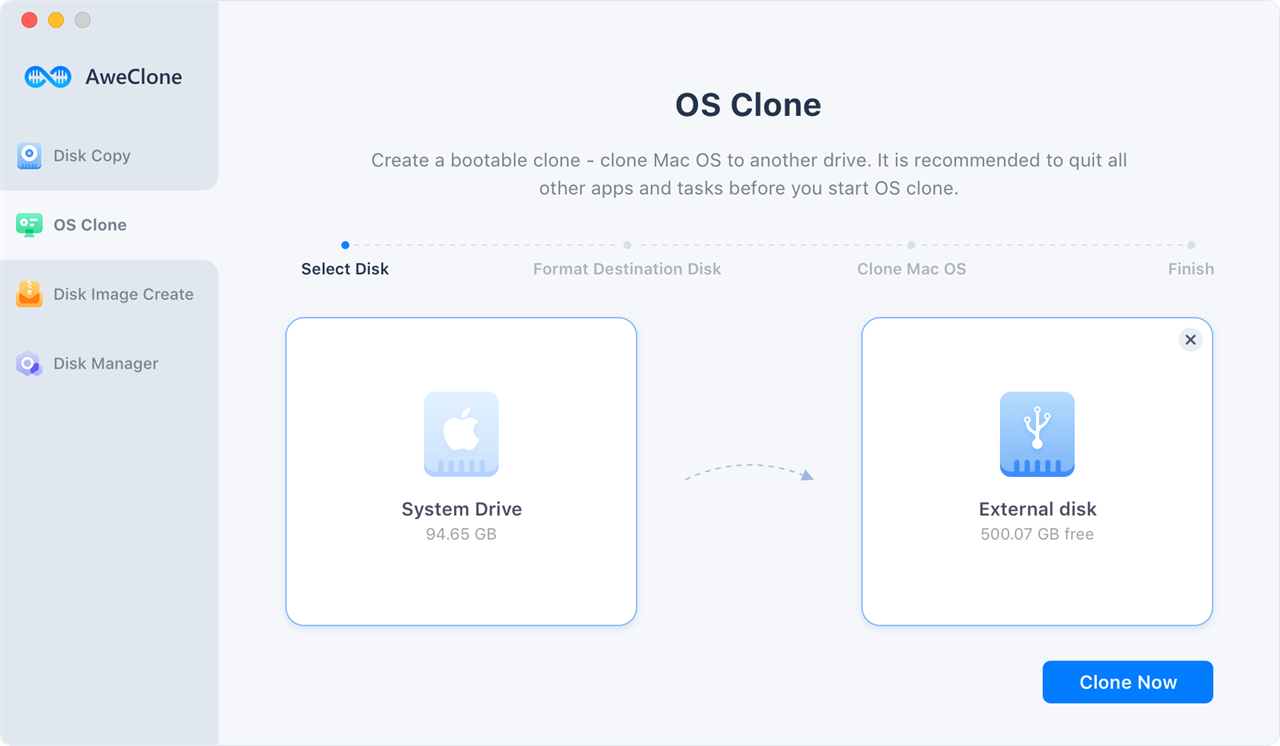
AweClone on BundleHunt provides sector-level cloning with graceful bad-sector handling. Use it when Migration Assistant fails with I/O errors, or when the source drive is making unusual sounds and you need to capture what's still readable.
Good for: recovering data from a Mac with a failing or partially unreadable drive before it becomes completely inaccessible.
Not for: healthy drives where Migration Assistant or Disk Utility Restore already works.
Full feature list
Sector-level and file-level clone modes, bad sector skip with detailed log, estimated unreadable sector map, scheduled incremental clones, bootable clone creation, and macOS Sequoia support on Intel and Apple Silicon. (verify current capabilities on the vendor page)
Donemax Disk Clone — multi-volume layouts in one pass
If the old Mac has a custom partition layout — legacy Boot Camp, dual macOS installs, or a separate Data volume — Donemax Disk Clone preserves every volume in a single clone. Disk Utility's Restore function handles one volume at a time and requires manual repeats for each partition.

Donemax Disk Clone on BundleHunt clones full disks with partition table preservation in one pass. Use it when your source has multiple volumes that need to survive the migration intact.
Good for: Macs with Boot Camp, dual macOS installs, or custom partition layouts that need to be preserved in a single operation.
Not for: standard single-volume Macs. Disk Utility Restore or Migration Assistant covers those without extra software.
Full feature list
Full-disk clone with partition table, GPT and MBR support, disk image creation and restoration, incremental clone update, verification pass after completion. (verify current capabilities on the vendor page)
Todo PCTrans — Windows-side PC migration before a Mac switch
Migration Assistant handles Mac-to-Mac. For a Windows-to-Mac move, Apple's Windows Migration Assistant transfers documents, email, contacts, calendars, and bookmarks. Todo PCTrans is different: it is useful on the Windows side when you need to move files, applications, user accounts, or settings between Windows PCs before you start the Mac migration.
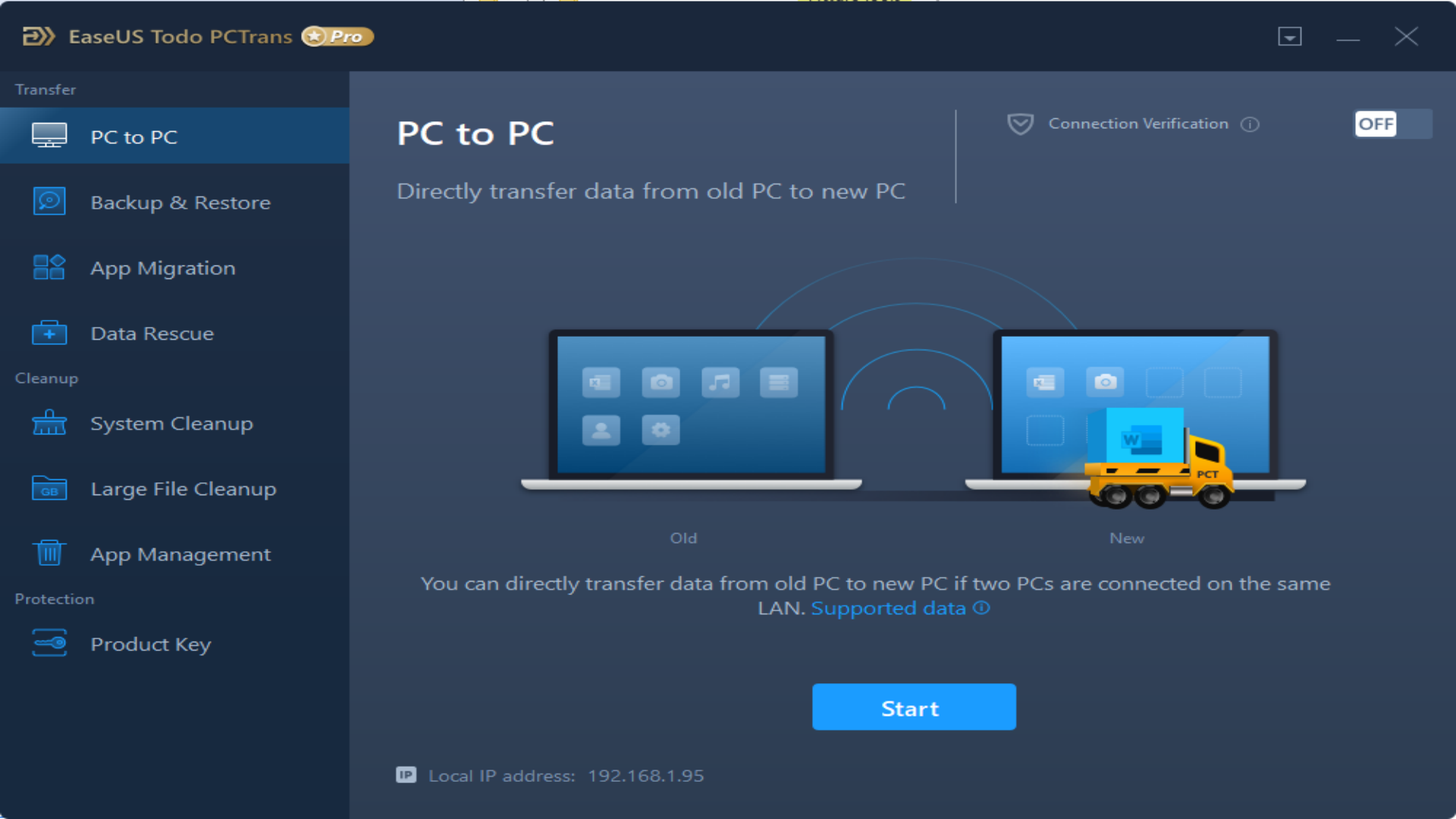
Todo PCTrans on BundleHunt is a Windows PC migration tool for transferring files, programs, accounts, and settings between Windows machines. Use it when the Windows source environment needs cleanup, consolidation, or a PC-to-PC move before the final Mac transfer.
Good for: users whose switch starts with a messy Windows setup, multiple Windows PCs, or a PC-to-PC move that needs to happen before files are brought over to the Mac.
Not for: Mac-to-Mac migrations or installing Windows .exe apps on macOS. Migration Assistant covers Mac-to-Mac for free, and Windows apps still need Mac equivalents.
Full feature list
Windows-to-Windows program transfer, file transfer, user account and settings migration, backup-and-restore transfer mode, local app migration, progress reporting, and selective transfer by category.
App Cleaner & Uninstaller — trim the bloat after migration
Migration Assistant copies everything from /Applications — including apps you stopped using years ago. Each leaves behind preference files, caches, and login items. macOS has no built-in way to remove an app and all its support files cleanly.
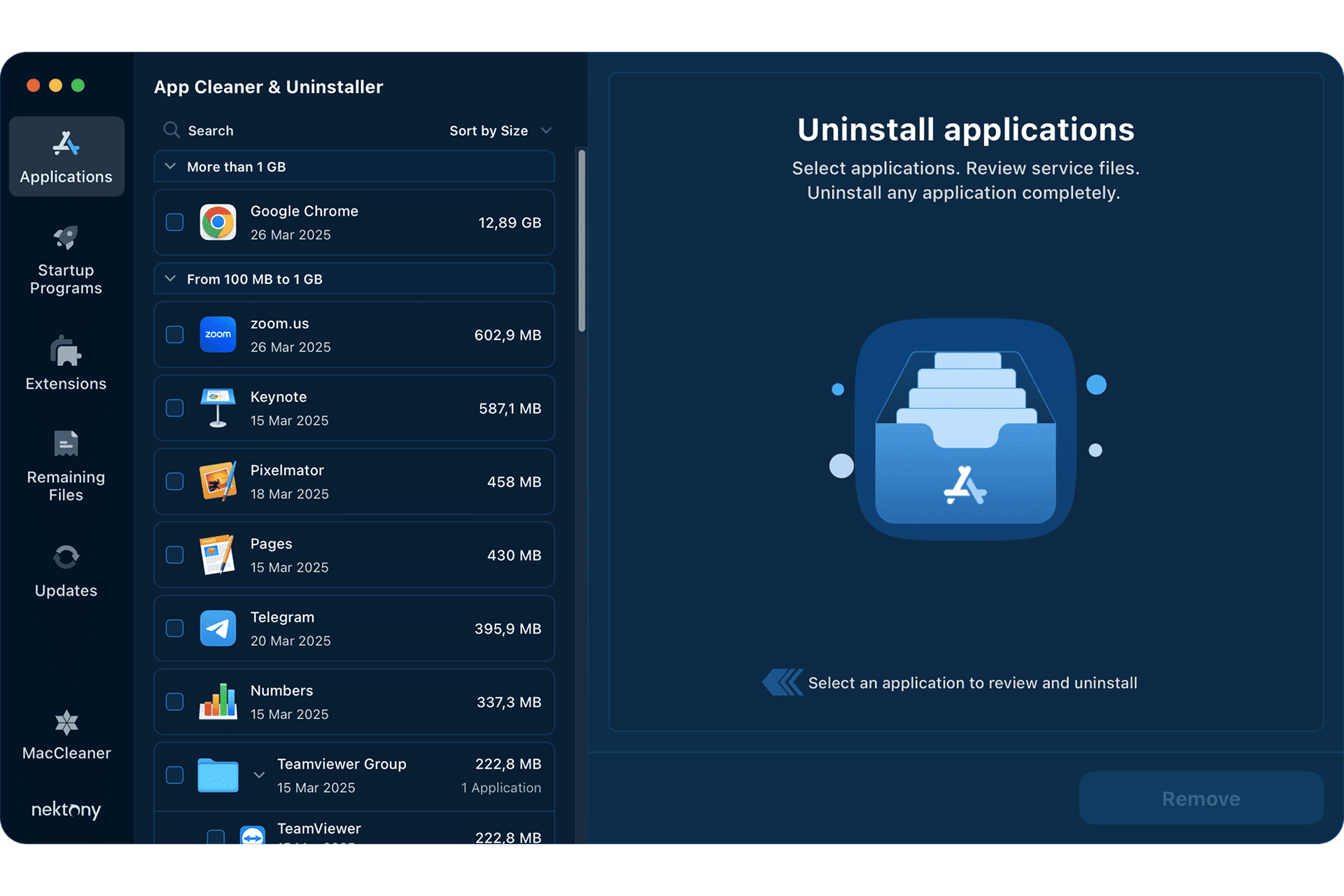
App Cleaner & Uninstaller on BundleHunt finds apps along with all their preferences, caches, launch agents, and support files, then removes everything together. Use it after migration to clean out apps you carried over but don't actually need.
Good for: users who migrated from a Mac that had accumulated years of apps, and want to start the new Mac clean without hunting for support files manually.
Not for: regular app installs and removals where you're not migrating accumulated bloat. The built-in drag-to-Trash method is fine for that.
Full feature list
Full app audit showing all support files per app, bulk uninstall with support file removal, launch agent and login item scanner, leftover file finder for already-deleted apps, and macOS Sequoia compatibility.
How to verify the migration worked
Don't wipe the old Mac until you've run these checks. Missing activations and broken settings usually surface within the first 48 hours.
- Launch every paid app. Walk through /Applications. Watch for "Please activate" prompts (deactivate on old Mac first), missing license info, or "Cannot find library" errors.
- Verify the home folder structure. Finder → your user folder. Desktop, Documents, Downloads, Pictures, Music, Videos should each contain what you expect.
- Check Mail and Messages. Accounts configured, inbox populated, Sent/Drafts intact. Messages may ask to re-verify iMessage with a code.
- Test browser autofill. Visit two or three sites you log into. If passwords don't autofill, sign into iCloud Keychain via System Settings → Apple ID → iCloud → Passwords & Keychain.
- Verify SSH and Git (developers).
ssh -T [email protected]should print "Hi [handle]! You've successfully authenticated." If denied, check that~/.ssh/is populated and runchmod 600 ~/.ssh/id_ed25519 ~/.ssh/id_rsa(private key files only — do not glob everything in ~/.ssh/). - Re-enable Time Machine. System Settings → General → Time Machine → Add Backup Disk. Run an immediate backup to confirm it works on the new Mac.
- Check iCloud sync. System Settings → Apple ID → iCloud. Photos, Drive, Notes, Reminders should show recent activity. Photos originals can take days to re-download — that's normal.
- Wait 48 hours before wiping the old Mac. Keep it bootable as a fallback.
A few common questions
How long does Migration Assistant take? Timing depends on data size, connection type, and source drive speed. Thunderbolt is the fastest option; Wi-Fi can take 4–10x longer for large transfers. Actual speed depends on drive health, APFS compression, and Migration Assistant overhead.
Can I migrate over Wi-Fi without a Thunderbolt cable? Yes. Both Macs on the same network. It works but takes significantly longer for anything over 100 GB. Ethernet is a faster middle ground.
Will apps work right after migration? App Store apps re-validate against your Apple ID immediately. Non-App Store apps mostly work because licenses live in ~/Library/Preferences. Adobe, Microsoft 365, and pro audio plugins need manual reactivation.
Related reading
- How to Set Up a New Mac in 2026 — the pillar
- How to Transfer from Windows PC to Mac
- How to Set Up External Drives on New Mac
- How to Set Up Time Machine on New Mac
- How to Customize Mac Dock and Menu Bar
- How to Factory Reset a Mac in 2026
Sources
- Apple Support: Move content to a new Mac with Migration Assistant
- Apple Support: About Migration Assistant on Mac
- Apple Support: If Migration Assistant doesn't work on your Mac
- Apple Support: Back up your Mac with Time Machine
Last reviewed 2026-05-17. Verified against macOS Sequoia 15.4 on Apple Silicon (M2, M3) and Intel (T2).