// 10-second answer
macOS Sequoia's Migration Assistant transfers your user account, apps, documents, photos, and most system settings for free. It does not reactivate third-party software licenses — apps like Adobe, Microsoft, and Sketch need manual re-authorization on the new Mac. Some system preferences (accessibility, VPN, and third-party kernel extensions) may not carry over fully. What this cluster covers: privacy defaults, app cleanup, Dock customization, and backup — the steps Migration Assistant skips or can't handle. Paid tools are only mentioned where macOS leaves a real gap.
- Are you migrating from an old Mac or Windows PC?
- Do you want privacy defaults locked before installing apps?
- Do you want to clean up the bloat Migration Assistant carries forward?
- Do you want a Dock, desktop, and app stack that matches how you actually work?
// jump to
Disclosure: BundleHunt sells MacCleanse, MacPilot, FastestVPN, Doneit, Quick Tab, Dock Star, App Cleaner & Uninstaller, AweClone, 1Click Duplicate Finder, PDF Squeezer, Markdown+, TextSniper, Simple Screenshot, Memory Booster, Iconize, and iCollections and earns a commission on each. Free options are listed first by design.
Setting up a new Mac in 2026 splits into 10 specific tasks. macOS Sequoia's Migration Assistant handles the data transfer — timing depends on data size, connection type, and source drive speed; the rest of this cluster covers what Apple's wizard misses — privacy defaults, app cleanup, Dock configuration, and daily-use utilities.
Before You Touch the New Mac
Do these steps on the OLD Mac first. Skipping them causes re-authorization headaches and incomplete transfers.
If migrating from an old Mac:
- Run a final Time Machine backup — it's your fallback if anything goes wrong mid-migration.
- Sign out of iCloud, iMessage, and FaceTime in System Settings > Apple ID > Sign Out.
- Deauthorize the Mac in Apple Music and TV (Music app > Account > Deauthorize).
- Sign out of Adobe, Microsoft, Figma, and any subscription with a machine count. (verify current deauthorization steps for each service before transfer, as flows can change)
- Note Wi-Fi passwords for non-iCloud networks — they won't transfer if you skip Migration Assistant.
If coming from Windows:
- Export browser bookmarks as an HTML file from Chrome, Edge, or Firefox.
- Move Documents, Pictures, Music, and Videos into one folder on an external drive formatted as exFAT.
- List every paid app and where its license key lives.
Why sign out before migration?
Apple's machine-count licenses (iCloud, Apple Music, Adobe, Microsoft) track by Apple ID association and hardware serial. Signing out cleanly removes the old Mac from each count. If you skip this step, the old serial lingers in Apple's records and the new Mac counts as a second activation — some subscriptions cap at 2 or 3.
The 10-Step New Mac Setup Order
Steps 1–7 are mandatory for every new Mac. Steps 8–10 are situational. Do them in order — each step creates the foundation for the next.
| Step | Task | Time (estimate; varies by Mac and user) | Deep dive |
|---|---|---|---|
| 1 | Migrate from old Mac (or skip if starting fresh) | depends on data size and connection | Mac-to-Mac Migration Guide |
| 2 | Transfer from Windows (if applicable) | 1–3 hrs | Windows to Mac Transfer |
| 3 | Set privacy defaults | ~15 min | Set Up Mac for Privacy |
| 4 | Configure productivity basics (Spotlight, Hot Corners, Shortcuts) | ~20 min | Set Up Mac for Productivity |
| 5 | Format and connect external drives | ~10 min | External Drives on New Mac |
| 6 | Enable Time Machine | ~10 min | Set Up Time Machine on New Mac |
| 7 | Customize Dock and menu bar | ~15 min | Customize Mac Dock and Menu Bar |
| 8 | Install essential apps | ~30 min | Essential Mac Apps for New Macs 2026 |
| 9 | Set up coding tools (developers only) | 1–2 hrs | Set Up Mac for Coding 2026 |
| 10 | Know how to factory reset (resale reference) | reference | Factory Reset Mac 2026 |
Migration Options Side by Side
Migration Assistant is the right default for Mac-to-Mac moves. Bootable clones add insurance for users doing major hardware swaps or OS upgrades.
| Method | Best for | Time | Free? |
|---|---|---|---|
| Apple's Migration Assistant | Mac → Mac, wired Thunderbolt or Wi-Fi | 30 min – 4 hrs | Yes |
| Time Machine restore | Mac → Mac when old Mac is dead | 1–6 hrs | Yes |
| Manual file copy (AirDrop, drag) | Selective transfer, fresh start | Varies | Yes |
| Bootable clone | Identical disk layout, advanced users | 30 min – 2 hrs | Paid |
| Windows Migration Assistant | Windows → Mac | 1–3 hrs | Yes |
For the bootable clone path, AweClone creates a sector-level duplicate of your startup disk that you can boot from if anything goes wrong mid-migration (see our cloning guide for caveats).
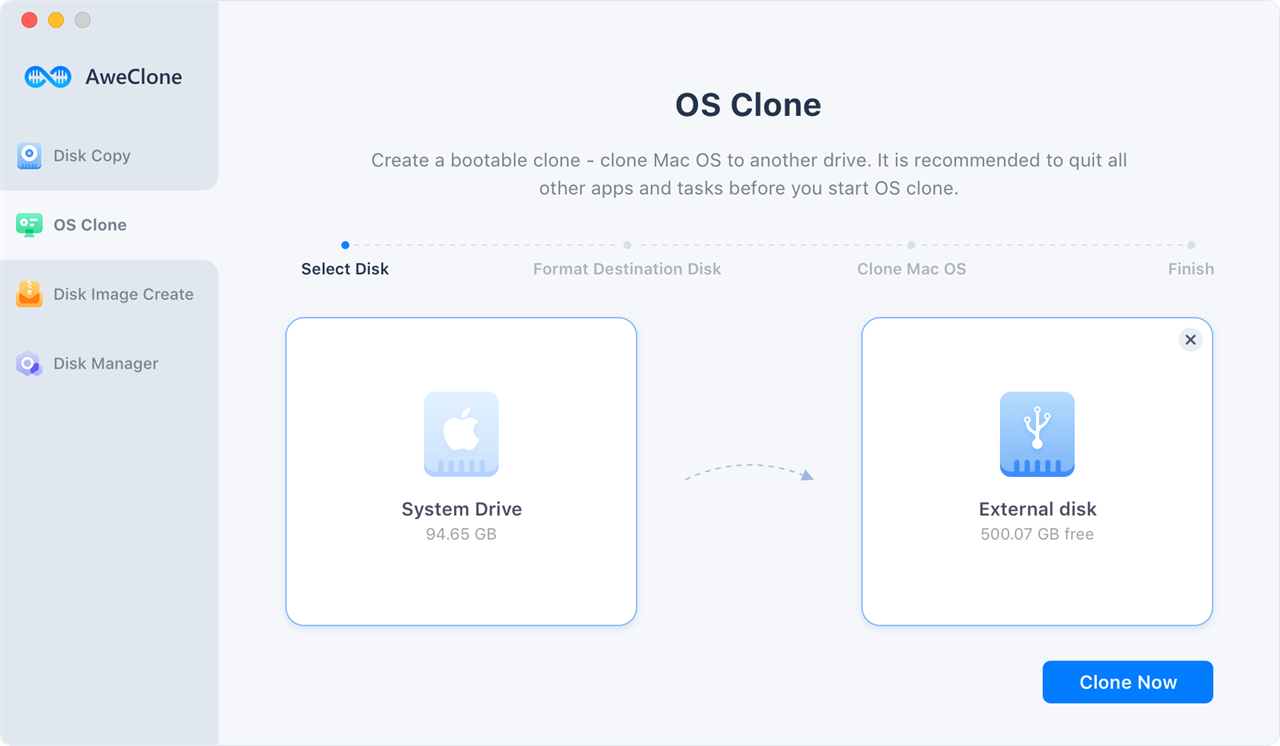
AweClone on BundleHunt creates a one-click bootable clone before you wipe the old Mac. It's useful insurance when Migration Assistant stalls halfway through a large transfer.
Good for: users doing a major hardware swap who want a fallback they can boot from immediately.
Not for: typical Mac-to-Mac migrations where Migration Assistant handles everything. The built-in Disk Utility Restore command covers basic cloning for free.
Migration Assistant vs. bootable clone — when each wins
Migration Assistant copies your user account, apps, settings, and data into a new user directory on the new Mac. It's the right default. A bootable clone copies the entire disk sector-by-sector, so the new drive is byte-for-byte identical to the old one — useful when you need an exact environment preserved (developers with complex tool chains, users migrating to an identical hardware model). For everyone else, Migration Assistant is faster and more reliable.
Tools That Help With Each Setup Step
Steps 3–8 go faster with the right utilities. macOS covers the basics; the paid picks below fill the gaps Apple left open.
Customize Your Desktop and Dock (Step 7)
MacPilot provides a GUI for the hundreds of hidden macOS preferences that System Settings doesn't expose — Dock animation speed, screenshot format, Finder behavior, and more.
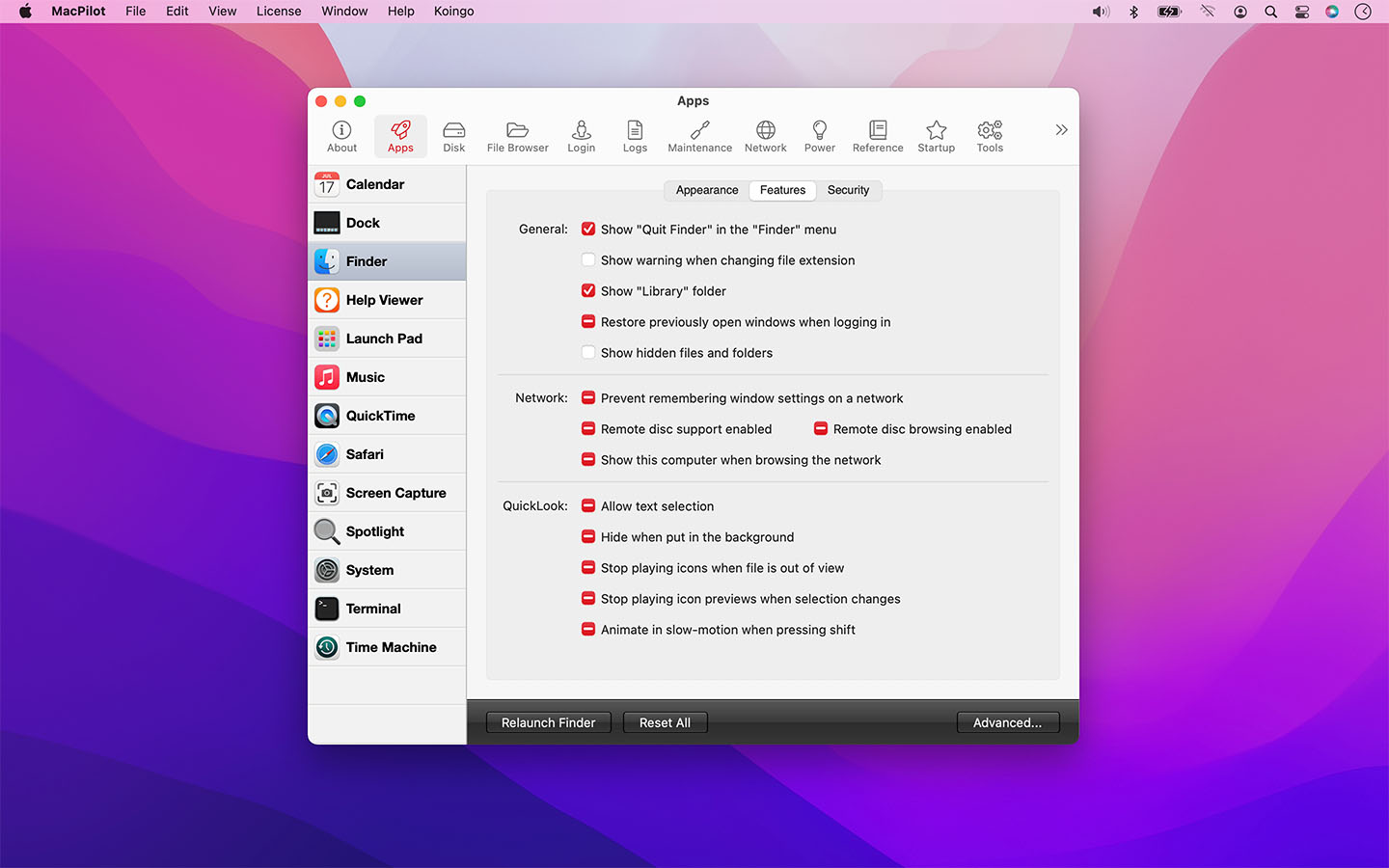
MacPilot on BundleHunt gives you a searchable interface to hidden macOS settings with per-user vs. system-wide toggles. The free alternative TinkerTool covers common tweaks; MacPilot covers everything TinkerTool doesn't.
Good for: power users who want to tune Dock speed, Finder defaults, screenshot behavior, and hidden system preferences without typing defaults write commands.
Not for: users who are happy with macOS defaults. TinkerTool (free) covers most needs.
For visual Finder navigation and Dock customization: Iconize, iCollections, and Dock Star each address a different gap — see our Mac Dock and desktop apps comparison for a full breakdown.
Clean Up and Maintain (Step 8)
After installing your essentials, MacCleanse scans for leftover caches and language packs that Migration Assistant carried forward.
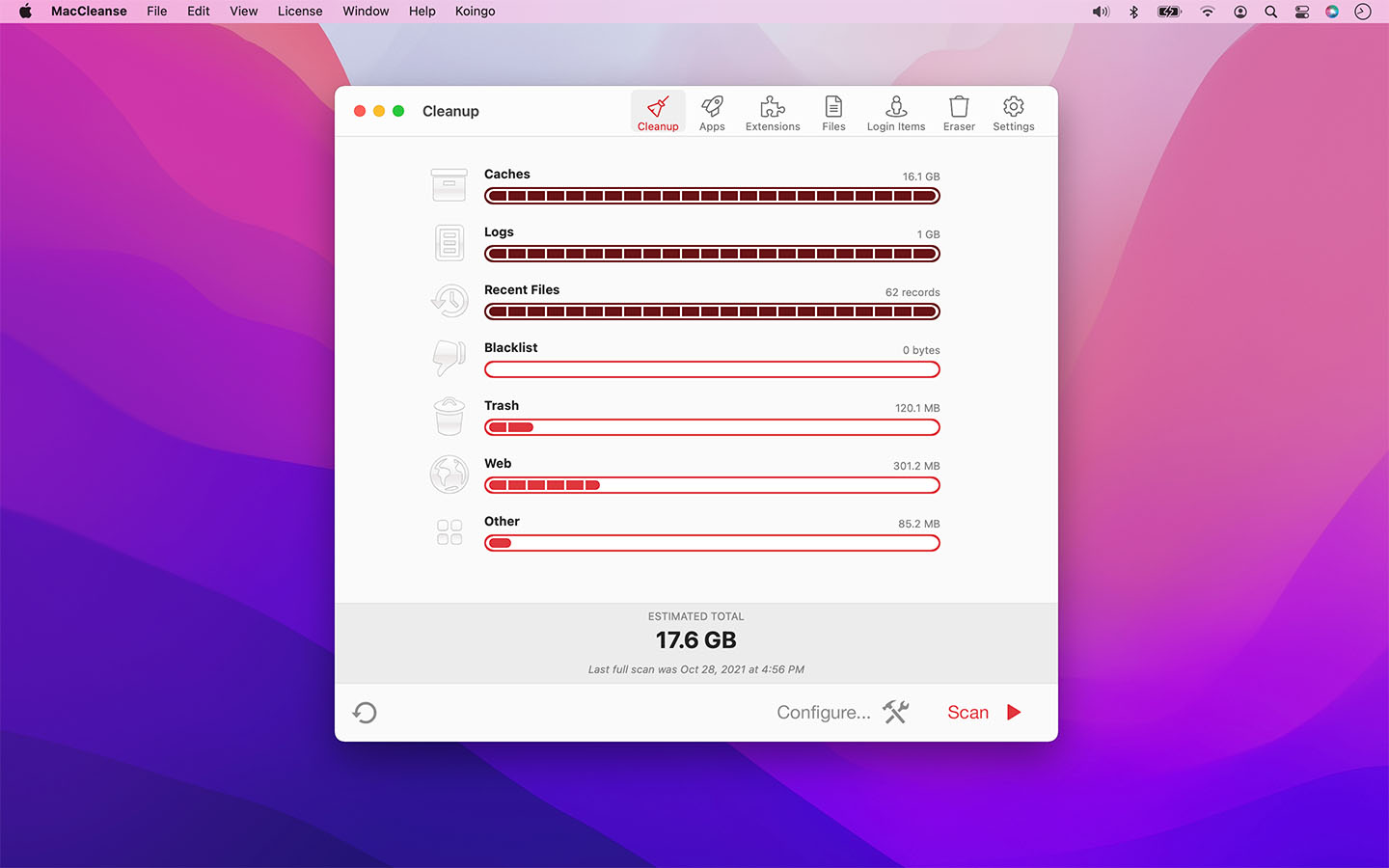
MacCleanse on BundleHunt — one-shot scan-and-clean with conservative defaults. Finds caches, logs, language packs, and orphaned application support files from the migration.
Good for: post-migration cleanup on Macs where Migration Assistant brought gigabytes of cached data from the old machine.
Not for: users with a clean install who haven't accumulated junk yet. OmniDiskSweeper (free) handles manual triage without automation.
App Cleaner & Uninstaller removes apps you tried and didn't keep, including their scattered Library files. 1Click Duplicate Finder catches files that Migration Assistant may have copied twice.
If your 8GB Mac shows memory pressure after installing everything, Memory Booster shows real-time RAM usage so you can identify which new apps are heaviest.
Memory Booster on BundleHunt — menu-bar memory monitor. Shows which apps consume the most RAM right after a fresh install so you can decide what to keep.
Good for: users on 8GB or 16GB Macs who want to baseline memory usage before and after installing new apps.
Not for: users with 32GB+ who are unlikely to hit memory pressure. Activity Monitor (free, built-in) shows the same data without the menu-bar convenience.
Capture and Document Your Setup (Step 8)
Screenshots help you remember what you configured. Simple Screenshot adds annotation tools that macOS's built-in markup doesn't include.

Simple Screenshot on BundleHunt — annotate screenshots with arrows, numbered callouts, and blur. Useful for documenting your setup choices before you forget the configuration details.
Good for: users who document their setup for reference, or anyone who shares annotated screenshots with support or colleagues.
Not for: users who only need basic screenshots. macOS Screenshot (Cmd+Shift+5) with Preview Markup handles that for free.
For writing setup notes: Markdown+ gives you a distraction-free writing environment with live preview. For grabbing text from screenshots: TextSniper OCRs any rectangle on screen with a keyboard shortcut.
Productivity and Daily Use (Step 8)
Additional utilities worth adding after the core setup is in place: PDF Squeezer for drag-and-drop PDF compression before emailing scanned documents, Quick Tab for keyboard-driven tab search across Safari windows, Doneit for kanban-style task tracking, and FastestVPN to encrypt your connection on public Wi-Fi.
A few common questions
Should I use Migration Assistant or set up fresh? If your old Mac ran smoothly, use Migration Assistant. If it had unexplained slowdowns or you want a clean slate, set up fresh and manually copy user files — that takes 4–8 hours longer but removes inherited cruft.
How long does Migration Assistant take? Over Thunderbolt cable: 30–60 minutes per 100 GB. Over Wi-Fi: often several hours for 500 GB. Use a cable whenever possible.
Will Migration Assistant copy my apps? Yes for App Store apps (re-downloaded from your Apple ID) and for most non-App Store apps. Machine-counted subscriptions like Adobe and Microsoft need re-authorization on the new Mac.
Can I migrate from a Time Machine backup? Yes. Migration Assistant has a "From a Time Machine backup" option on first run, even if the old Mac is dead.
Read Next (The Full Cluster)
- How to Migrate from Old Mac to New Mac
- How to Transfer from Windows PC to Mac
- How to Set Up Mac for Privacy
- How to Set Up Mac for Productivity
- How to Set Up External Drives on New Mac (NTFS, exFAT, APFS)
- How to Set Up Time Machine on New Mac
- How to Customize Mac Dock and Menu Bar on New Mac
- Essential Mac Apps to Install on a New Mac in 2026
- How to Set Up Mac for Coding in 2026
- How to Factory Reset a Mac in 2026
Sources
- Apple Support: Migration Assistant
- Apple Support: Windows Migration Assistant
- Apple Support: Back up your Mac with Time Machine
- macOS Sequoia 15.4 setup documentation (Apple)
Last reviewed 2026-05-17. Verified against macOS Sequoia 15.4.