// 10-second answer
Apple ships a usable default in all ten categories below. A paid app earns attention only when a specific failure mode keeps showing up in your workflow. The category map names those failure modes so you can decide whether to stay with the macOS default or open the deeper guide.
- Is there one category where the built-in macOS tool repeatedly slows you down?
- Can you name the specific failure mode (capture speed, missing hotkey, leftover files, etc.) in one sentence?
- Does the macOS default already cover what you actually do, even if it's not flashy?
// jump to
This is a hub, not a whole-market listicle. It covers ten productivity categories where BundleHunt currently has a relevant paid tool and where macOS already has a usable default. For each one: the built-in option, the failure mode that might justify paying, and a link to the deep-dive post.
If you already know your category, skip the map and click straight through. Each child guide is decision-first and assumes you haven't read this page.
Disclosure: BundleHunt sells the paid apps named in this post and earns a commission on each sale. Free macOS defaults are listed first in every category by design. Apple does not pay us.
The category map
Ten rows. Each names the macOS default and the failure mode that justifies leaving it. Read the right column first — if the failure doesn't match your week, the default is the answer.
| # | Category | macOS default | When the default stops |
|---|---|---|---|
| 1 | To-do and task management | Apple Reminders | Capture-speed friction or project-board structure |
| 2 | OCR and text extraction | Live Text | Daily snippet OCR with no global hotkey |
| 3 | Calculators | Calculator + Spotlight | Mixed prose-and-numbers worksheets |
| 4 | Dock customization | macOS Dock | Multi-monitor layouts or themed appearance |
| 5 | Tab and window management | Safari/Chrome built-in tab search | Cross-browser keyboard search across all windows |
| 6 | Menu bar and clipboard | Spotlight + Shortcuts | Single panel consolidating clipboard, snippets, and tools |
| 7 | App uninstallers | Drag-to-Trash | Privileged helpers, launch daemons, or volume-based removal |
| 8 | Duplicate file finders | Photos Duplicates + fdupes | Similar-folder detection or a polished visual GUI |
| 9 | Folder sync and cloud | rsync + launchd | Two-way sync with conflict prompts |
| 10 | Alarms and timers | Clock app | Chained timers or sleep-proof alarms |
Each child post follows the same structure: name the failure mode, cover the free path, then explain where the paid tool may help. If none of the failure modes match your workflow, the built-in option is the better recommendation.
How these picks were chosen
This is a BundleHunt editorial shortlist, not a whole-market ranking. Every app listed here is an active deal in the BundleHunt store; we only include an app when it solves a specific failure mode the macOS default doesn't cover. There are better-known apps in every category that aren't here because they aren't on BundleHunt — that's the honest constraint.
Standout picks across the cluster
Eight apps from the child posts. Each is tied to a specific failure mode rather than presented as a universal upgrade. If none of these failure modes match your workflow, you don't need any of them.
Doneit — task capture without the friction
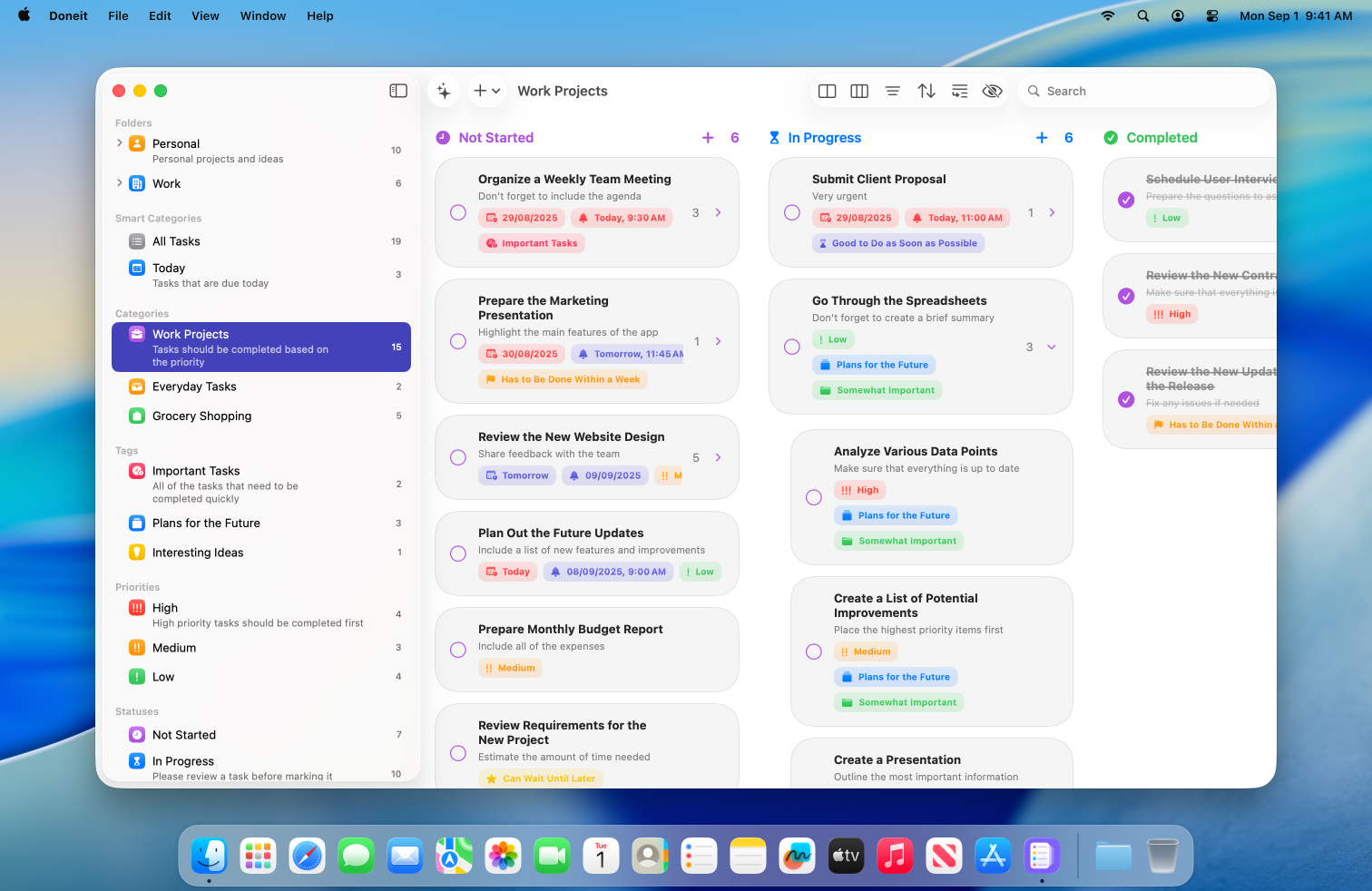
Doneit on BundleHunt is the pick from the to-do category when Apple Reminders feels too slow or too linear for your task-capture workflow. Its stated strengths are quick entry and a board-style project view.
Who it's for: people who regularly lose tasks because capture feels too slow, or who want a board view without moving into a larger project-management suite.
Who it's not for: anyone whose task list lives in Apple Reminders and works fine there.
Why it earned the slot: Quick capture plus a board view maps cleanly to the two Reminders failure modes this cluster is targeting: input friction and project structure.
Trust caveat: Feature availability may vary by BundleHunt tier; check the deal page for the current license level included.
When not to buy: If Apple Reminders already fits your daily capture workflow, this adds no benefit worth the cost.
Disclosure: BundleHunt sells this; we earn a commission.
TextSniper — OCR with a global hotkey
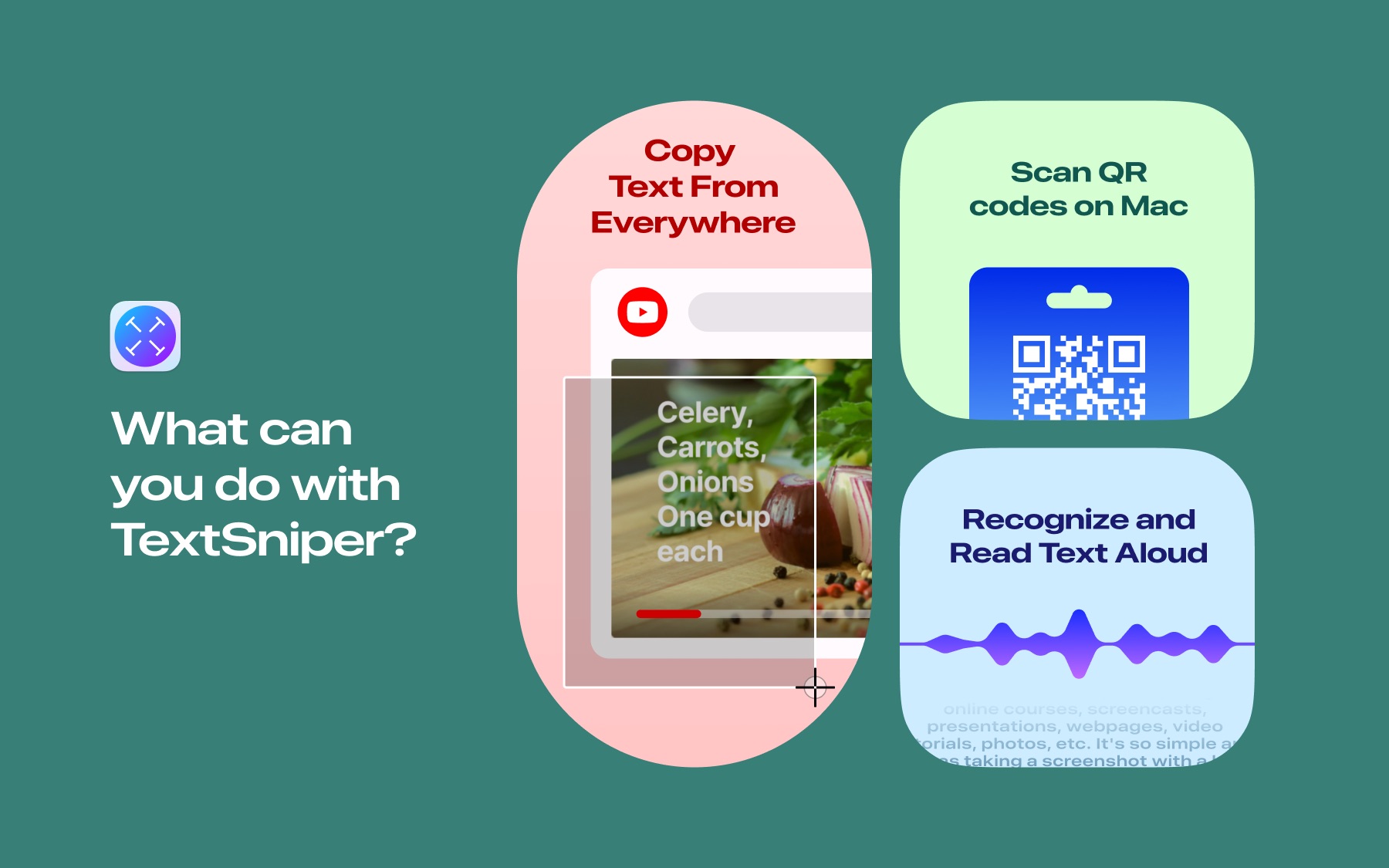
TextSniper on BundleHunt is positioned around quick screen-region OCR from a keyboard shortcut. From the OCR category, it is relevant when Live Text is available but too slow or too context-bound for the way you capture snippets.
Who it's for: anyone extracting text from screenshots, presentations, or video frames multiple times a day.
Who it's not for: occasional OCR users — right-click → Copy Text in Preview or Photos is enough.
Why it earned the slot: It targets the gap between occasional built-in OCR and repeated screen-region OCR.
Trust caveat: Language, barcode, and automation features may depend on the license tier; check the deal page before purchasing.
When not to buy: If you extract text fewer than a few times a week, right-click → Copy Text in Preview is free and sufficient.
Disclosure: BundleHunt sells this; we earn a commission.
Quick Tab — cross-browser tab search
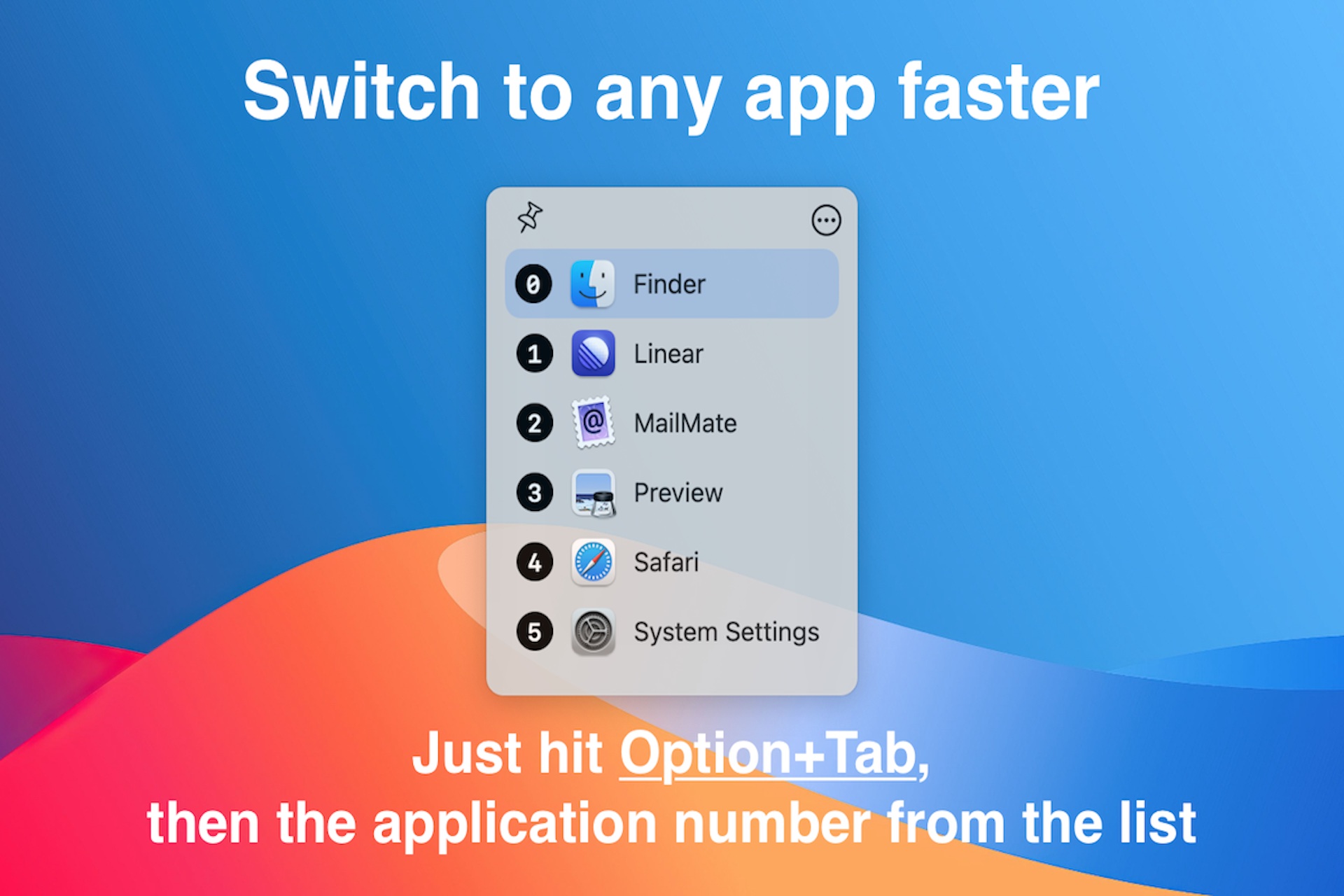
Quick Tab on BundleHunt is positioned around keyboard-driven tab search across browsers and windows. From the tab management category, it is relevant when built-in browser tab search is not enough because your tabs are split across multiple browsers or windows.
Who it's for: anyone running enough tabs across multiple browsers that browser-specific tab search no longer matches the way they work.
Who it's not for: single-browser users — the built-in tab search (Cmd+Shift+\ in Safari, Cmd+Shift+A in Chrome) already works.
Why it earned the slot: It targets cross-browser tab retrieval, which built-in browser tab search does not handle as one combined workspace.
Trust caveat: Browser compatibility depends on the browser versions installed; check supported browsers on the developer's site before purchase.
When not to buy: If you use a single browser, the built-in tab search shortcut already handles this for free.
Disclosure: BundleHunt sells this; we earn a commission.
Dock Star — the Dock replacement that looks right
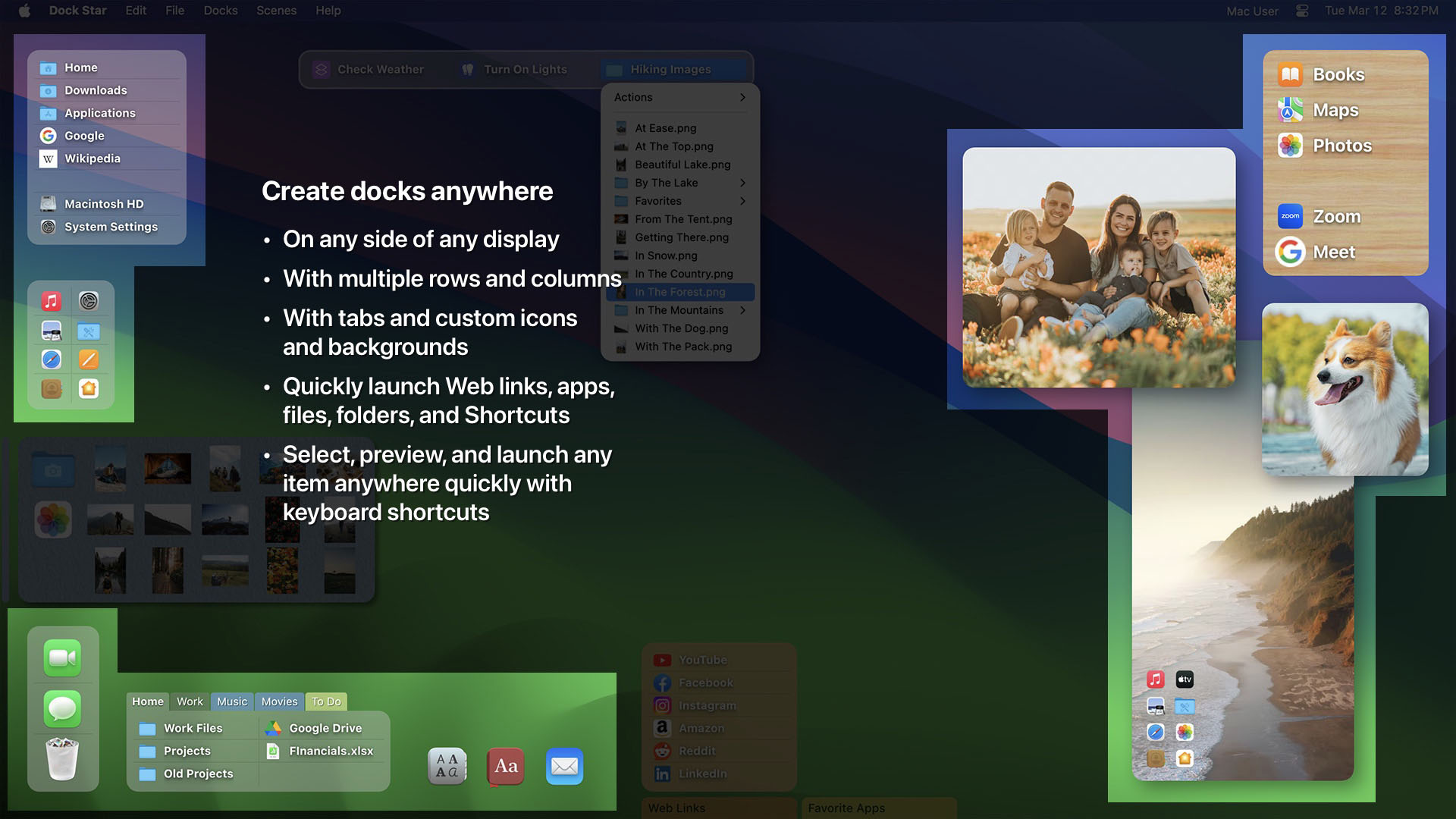
Dock Star on BundleHunt is positioned as a Dock-customization tool for users who want more visual control than System Settings exposes. From the dock customization category, it is relevant when the problem is appearance and layout preference, not a broken Dock.
Who it's for: anyone who's tried defaults write com.apple.dock no-glass -bool true and still wants more visual control.
Who it's not for: people who want a reliable second Dock on another monitor. That depends on macOS behavior and should not be assumed from any Dock theming app.
Why it earned the slot: It targets Dock appearance and customization depth beyond the built-in settings.
Trust caveat: Dock replacement apps depend on macOS accessibility APIs that can change between OS updates; check developer compatibility notes for your macOS version.
When not to buy: If your goal is a reliable second Dock on a second monitor, do not buy a theming tool for that purpose.
Disclosure: BundleHunt sells this; we earn a commission.
PasteJet — clipboard and menu bar utility
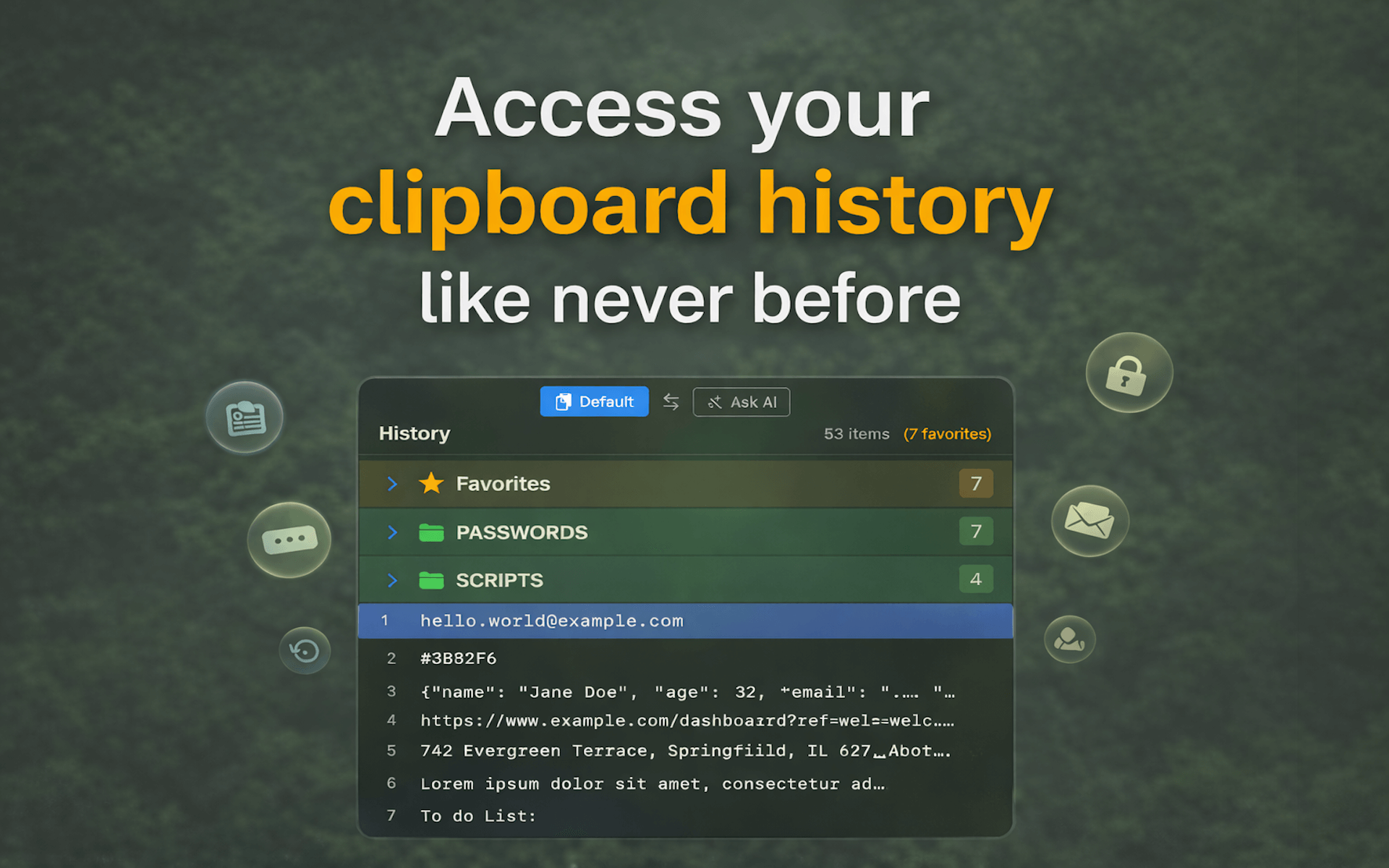
PasteJet on BundleHunt is positioned as a menu-bar clipboard utility with searchable history and pinned snippets. From the menu bar category, it is relevant when the single-item macOS clipboard is the actual friction.
Who it's for: anyone who copies five things in a row and needs to paste the second one — macOS only keeps the last.
Who it's not for: users already running a clipboard manager they're happy with. One is enough.
Why it earned the slot: Searchable clipboard history with pinned snippets fills the specific gap macOS's single-item clipboard leaves for multi-copy workflows.
Trust caveat: History depth and sync features vary by license tier; check the deal page for what's included in the BundleHunt version.
When not to buy: If you already have a clipboard manager you use daily, adding a second one creates conflicts — one is enough.
Disclosure: BundleHunt sells this; we earn a commission.
App Cleaner & Uninstaller — what drag-to-Trash misses
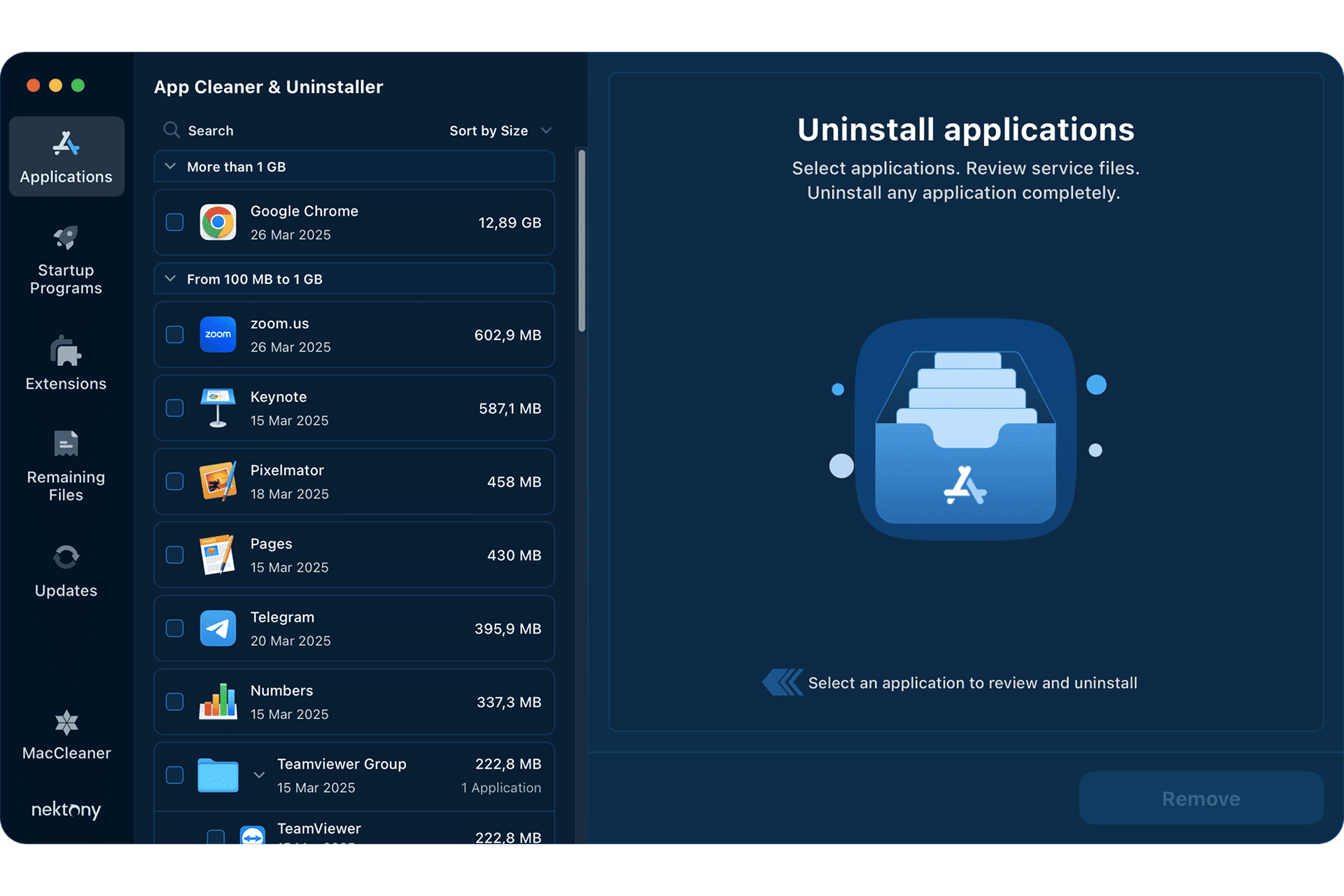
App Cleaner & Uninstaller on BundleHunt finds the launch agents, preference files, and Application Support folders that drag-to-Trash leaves behind. From the app uninstaller category. If you've ever uninstalled an app and noticed it still running a background process, this is the tool.
Who it's for: anyone who installs and removes apps frequently, especially tools that install privileged helpers or kernel extensions.
Who it's not for: casual users who remove one app a year — drag-to-Trash is fine.
Why it earned the slot: Catches launch agents, privilege helpers, and Application Support leftovers that drag-to-Trash can miss — the specific gap for frequent app installers.
Trust caveat: Kernel extension and privileged helper removal requires elevated permissions; review what the app requests during first launch before granting access.
When not to buy: If you remove one or two apps a year, drag-to-Trash is fine and the leftover files are negligible.
Disclosure: BundleHunt sells this; we earn a commission.
Duplicate File Finder — visual duplicate detection
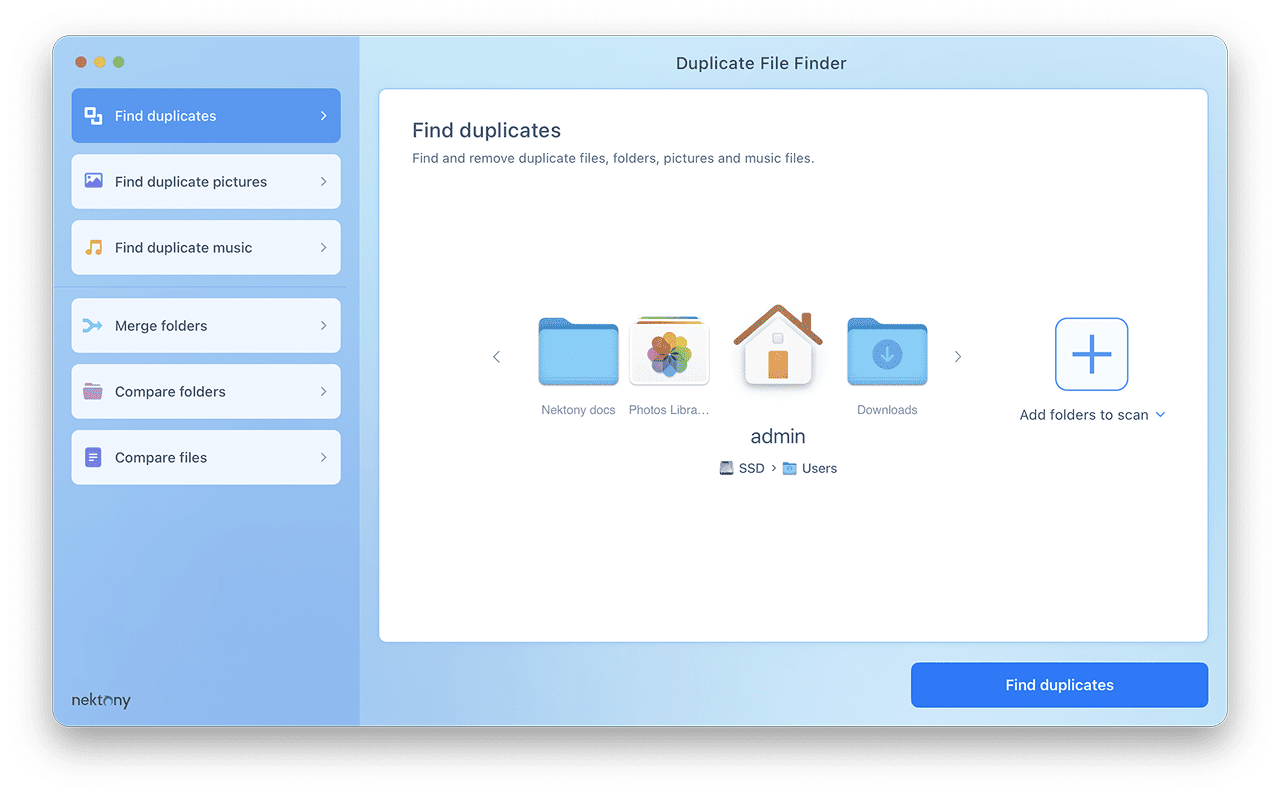
Duplicate File Finder on BundleHunt is positioned around visual duplicate review and similar-file detection. From the duplicate file finder category, it is relevant when command-line identical-file matching is not enough for your review workflow.
Who it's for: anyone with a large file collection accumulated over years who needs previews before deleting anything.
Who it's not for: someone who just wants to clean up a Downloads folder — fdupes in Terminal handles that.
Why it earned the slot: Visual preview before deletion reduces the risk of removing the wrong copy.
Trust caveat: "Similar file" detection uses heuristics — always preview matches before deleting; assume some manual review is required for photo libraries.
When not to buy: If you just want to clean a Downloads folder of identical files, fdupes in Terminal handles that for free.
Disclosure: BundleHunt sells this; we earn a commission.
Alarm Clock Pro — chained timers and stricter schedules
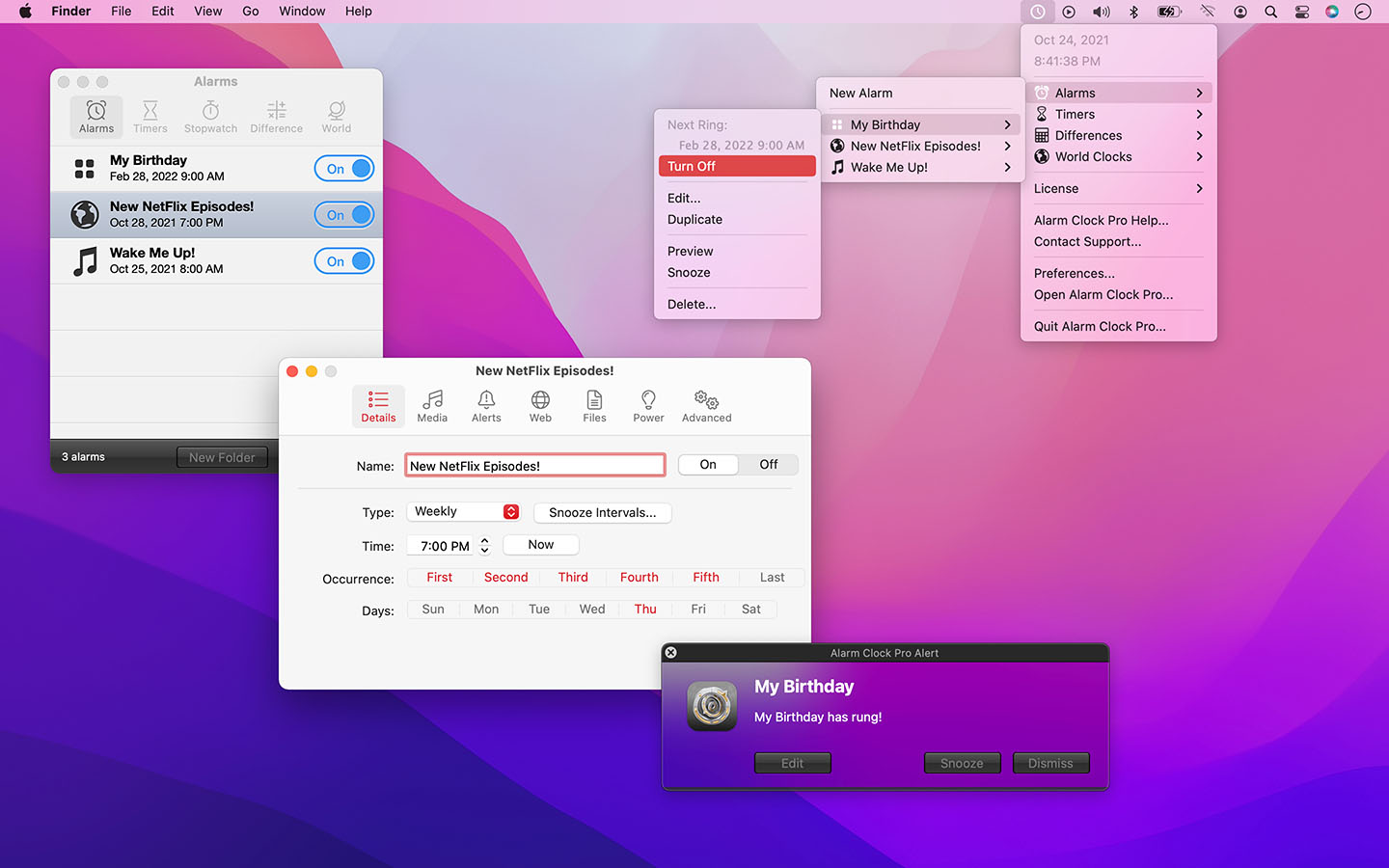
Alarm Clock Pro on BundleHunt is from the alarms and timers category. The macOS Clock app handles ordinary single alarms, but it does not handle chained timer presets or advanced alarm patterns well. Alarm Clock Pro is for structured schedules where a phone alarm or the built-in Clock app feels too thin.
Who it's for: anyone using their Mac as a primary alarm or running multi-step timed workflows (cooking, presentations, Pomodoro chains).
Who it's not for: someone who sets one alarm and their iPhone handles it — the Clock app is fine for single alerts.
Why it earned the slot: Chained timer sequences and structured alarm groups cover the specific patterns the built-in Clock app doesn't — Pomodoro chains, multi-step workflows, and sleep-through-prone single alerts.
Trust caveat: Script execution features require Automation permissions; check your macOS privacy settings and confirm the feature is included in the BundleHunt license tier.
When not to buy: If your iPhone handles your alarms and you only need one or two reminders a day, the built-in Clock app is sufficient.
Disclosure: BundleHunt sells this; we earn a commission.
Categories not on this list
Window tiling, clipboard history, notes, and calendars — categories where the built-in or free answer is honestly the right one in 2026. If you came looking for these, you probably don't need a paid app.
A few categories that appear on every "best Mac productivity apps" list but aren't here:
- Window management — Rectangle combined with macOS Sequoia's built-in window tiling covers most common layout needs for many users. No paid tool in our store justifies its price over those two for typical workflows.
- Notes and writing — covered in the writers cluster, which has its own pillar post.
- Calendars — Apple Calendar syncs with Google, Outlook, and CalDAV. The paid alternatives are preference-driven (design, natural language input), not failure-driven.
- Password managers — Passwords.app is a strong default for Apple-only personal use. Paid alternatives such as 1Password make more sense when you need cross-platform sharing, teams, travel controls, or a separate security workflow.
If one of these is your real friction point, the child cluster or the free tool is the honest answer.
A few common questions
These questions follow a consistent pattern: the macOS default covers casual use; a paid pick is worth considering only when a specific failure mode keeps recurring. The answers are meant to narrow the decision, not sell every category.
Are these the "best" Mac apps overall? No. This is a BundleHunt editorial shortlist, not a whole-market ranking. Each paid pick is conditional on a specific failure mode. If the failure mode doesn't apply to you, the macOS default is the right answer.
How do I know which category I'm in? Open the child post for the category that sounds like your friction. Each one starts with a decision card — a few questions that tell you whether the rest of the post applies to your situation.
Are the recommended apps compatible with the latest macOS? At publish time, these apps were listed as active BundleHunt deals. Check the deal page and developer compatibility notes before purchase, especially for utilities that rely on Accessibility, Automation, filesystem, or Dock behavior.
What if I don't have a Mac yet? These are macOS-only categories. A few of the linked products have iOS companions; the child posts call those out when relevant.
Do I need all ten categories? No. Most readers need zero or one paid app from this list. The entire point of the category map is to help you find the one that matters to your workflow and skip the rest.
Related reading
- Best Mac Apps for Writers in 2026 — markdown editors, notes, distraction-free writing, grammar
- Best Mac Apps for Developers in 2026 — code editors, API testing, database tools, dev productivity
- New Mac Setup Guide 2026 — the first-day checklist for a fresh Mac
Sources
- Apple Developer Documentation: Vision framework — the OCR engine powering Live Text
- Apple Support: Use Reminders on Mac
- Apple Support: Use Activity Monitor
man rsync,man fdupes,man defaultson macOS
Last reviewed 2026-05-17.