// 10-second answer
Start by measuring where space is used. Local snapshots are one possible cause, not junk to delete first. The paid tools in this guide solve the cases the free path can't — sandboxed container caches, duplicate content across drives, and permanent file erasure before selling.
- Has your Mac been "full" for weeks despite deleting files?
- Does About This Mac show a large "System Data" bar you can't explain?
- Do you want scheduled, automatic cleanup without running Terminal?
- Are you migrating to a larger drive or preparing to sell your Mac?
// jump to
Before running any cleanup commands, check what is actually using space:
# Measure free space first
df -h /
Open About This Mac > Storage to see a breakdown by category. Use this to identify which areas are genuinely large on your Mac before acting.
Disclosure: BundleHunt sells many of the apps linked in this guide and earns a commission. Free alternatives are listed first throughout.
The 10 disk space sinks
macOS hides storage in 10 specific places. Measure your Mac first using About This Mac > Storage — amounts vary significantly by Mac and usage pattern.
Each row below maps to a free Terminal command and a child post with the full walkthrough.
- 1. APFS local snapshots —
tmutil listlocalsnapshots /to see them. Amount varies; check before acting. See the Advanced section below before thinning snapshots. - 2. System Data — catch-all — About This Mac > Storage. Mostly caches, logs, and snapshots misattributed to "System." Amounts vary significantly; measure your Mac first. See How to Clean Mac Caches Safely.
- 3. App + user caches —
du -sh ~/Library/Caches/. Amounts vary by apps installed and usage. - 4. Downloads folder —
du -sh ~/Downloads/. Usually half DMGs from apps you already installed. See How to Clean Downloads Folder. - 5. Photos library — Can be the largest consumer on personal Macs, but amount depends heavily on your library size and iCloud settings. See How to Clean Photos Library on Mac.
- 6. Old iOS device backups —
~/Library/Application Support/MobileSync/Backup/. Delete via Finder > your device > Manage Backups. Amount varies per device. - 7. Spotlight metadata index —
du -sh /System/Volumes/Data/.Spotlight-V100. See the caveat in the section below before deleting. - 8. Oversized PDFs — Spotlight:
kind:pdf size:>50mb. Compress copies first, compare visual quality, and keep the original until you know the reduced version is acceptable. - 9. Duplicate files — Require a content-hash scan to find. Amount varies; Finder's filename matching misses renamed copies.
- 10. Orphaned app data — Dragging an app to Trash leaves
~/Library/Application Support/,~/Library/Containers/, and~/Library/Preferences/files behind.
Free 30-minute cleanup
These built-in checks find the biggest cleanup wins without spending anything. Inspect first, then delete only the folders you understand.
Work through these in order — safest first, advanced last.
Safe — review and delete obvious clutter first
# 1. Check free space baseline
df -h /

# 2. See what's in Downloads before deleting
du -sh ~/Downloads/
ls -lhS ~/Downloads/ | head -30

# 3. Empty Trash through Finder (files there still count against you)
open ~/.Trash
Safety level: safe. Reviewing Downloads and emptying Trash carries no risk.
Review-first — caches and logs
# 4. Preview user caches before deleting specific app folders
du -h -d 1 ~/Library/Caches | sort -hr | head -20

# 5. Preview system caches (needs sudo for full visibility)
sudo du -h -d 1 /Library/Caches 2>/dev/null | sort -hr | head -20

# 6. Preview user logs
du -h -d 1 ~/Library/Logs 2>/dev/null | sort -hr | head -20
Safety level: review-first. Caches rebuild on next app launch, but review the list before deleting — some folders (e.g., app-specific caches for video editors) may contain work-in-progress data.
Advanced — APFS local snapshots (do not do without backup)
Prerequisites before thinning snapshots:
- Confirm you have an external backup or Time Machine backup on a separate drive.
- List snapshots first to understand what exists:
tmutil listlocalsnapshots /- Only thin if snapshots are genuinely large and you have a confirmed external backup.
# List snapshots first — review before thinning
tmutil listlocalsnapshots /

# Thin snapshots only if you have a confirmed external backup
tmutil thinlocalsnapshots / 999999999999 1
Safety level: advanced — do not run without backup. Local snapshots are your only recovery option if you delete a file accidentally and have no other backup. Thinning them is irreversible.
Spotlight index caveat: Rebuilding the Spotlight index takes time and disables search temporarily. Only do this if Spotlight is confirmed as the storage cause via
du -sh /System/Volumes/Data/.Spotlight-V100. It is not routine junk.
Where the free path falls short
Three gaps where Terminal alone isn't enough:
- Sandboxed app caches live in
~/Library/Containers/<bundle-id>/Data/Library/Caches/. You need to know each bundle ID to clean them individually — cleaners map those IDs to friendly app names. - Visibility — you review file sizes but not content previews, so it can be hard to judge what's safe to delete.
- Repeatability — you'll want to do this again in 30 days. Remembering these commands is friction.
Mac cleaners
One-click cleaners solve sandboxed container caches and scheduled cleanup — the two things Terminal can't do easily. Only buy one if those two problems are yours.
Apple-native first: the free path above — Terminal commands plus a visual file mapper such as OmniDiskSweeper — covers the core diagnosis work. Paid cleaners earn their place only when they make a specific repeated task easier, such as sandboxed container cache cleanup, scheduled cleanup, duplicate review, or app-uninstall leftovers.
MacCleanse (Koingo) — granular per-category preview before you delete anything. Best for users who want to see exactly what's going to be wiped before clicking Clean.
DMcleaner (Donemax) — cache cleanup, large-file finder, duplicate finder, and app uninstaller in one window. Best if you'd otherwise buy three separate utilities.
AweCleaner (Magoshare) — the simplest one-click option with no extra modules. Good entry point if you just want the junk gone with minimal configuration.
Mac PowerSuite (Fireebok) — disk cleanup, RAM management, and duplicate finding in one dashboard. Best if you're unsure whether your slowness is disk pressure or RAM pressure.
Full head-to-head: Best Mac Cleaner Apps 2026.
Disclosure: BundleHunt sells all of the above and earns a commission on each.
Duplicate and file tools
Duplicates are the most commonly overlooked space sink. Content-hash scanning finds renamed copies that filename search misses entirely.
macOS Finder has no built-in duplicate scanner. Terminal can md5-hash files but shows only hashes — not side-by-side previews. A dedicated tool finds duplicates by byte content and shows previews before deletion.
Duplicate File Finder (Nektony) — scans across any folder combination by content hash, with side-by-side previews. Works inside and outside Photos library.
1Click Duplicate Finder - 1 Year (SEASOFT) — also finds similar (not-quite-identical) images using perceptual hashing. Useful for near-duplicate vacation photos.
App Cleaner & Uninstaller (Nektony) — finds and removes orphaned files left behind by apps you've already dragged to Trash. Also manages startup items and login extensions.
Disk Space Analyzer (Nektony) — treemap view of your entire drive. Shows which folders are largest before you start deleting.
Scherlokk (Naarak) — lightning-fast filename and content search across the full drive. Useful for locating every copy of a file before deciding which to keep.
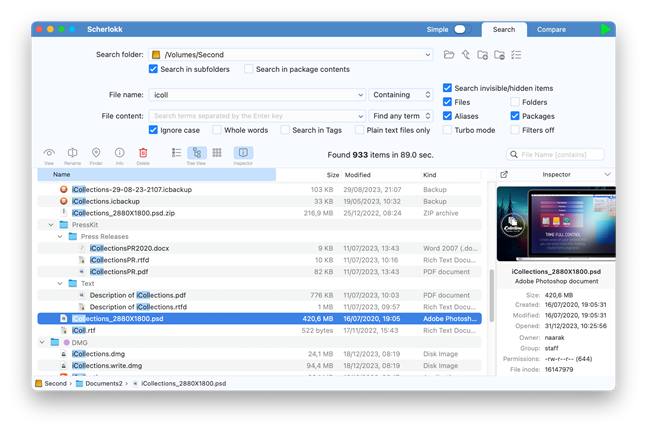
Scherlokk on BundleHunt is a regex-capable file search tool that indexes your drive and returns results in under a second — useful for finding every duplicate filename, every old installer, or every large file before you delete them.
Good for: power users who want to locate files by name pattern or content before doing a bulk cleanup pass.
Not for: users who want auto-deletion without reviewing results — Scherlokk finds, it doesn't delete.
Full feature list
Regex and wildcard search, file content search, result filtering by kind/size/date, fuzzy matching, integrated Quick Look previews. Can search inside archive files. Extremely fast on Apple Silicon due to low-level filesystem indexing.
Disclosure: BundleHunt sells this; we earn a commission.
File management utilities
File renaming, migration, and compression tools solve the administrative layer of storage bloat — files that are disorganized rather than truly unwanted. These belong after the cleanup pass, not before.
PDF Squeezer (Witt Software) — batch-compresses PDFs. Always run it on copies first, because compression settings can reduce image quality.
NXPowerLite Desktop (Neuxpower) — compresses Office documents, PDFs, and images in bulk. Useful if your Documents folder is bloated with large presentation files.
Todo PCTrans (EaseUS) — Windows-side migration software that helps copy files, settings, and data from one Windows PC to another. It is not a tool for moving macOS apps. Useful if you are consolidating files from an old Windows machine before switching to Mac.
maFileRenamer — batch rename for storage organization
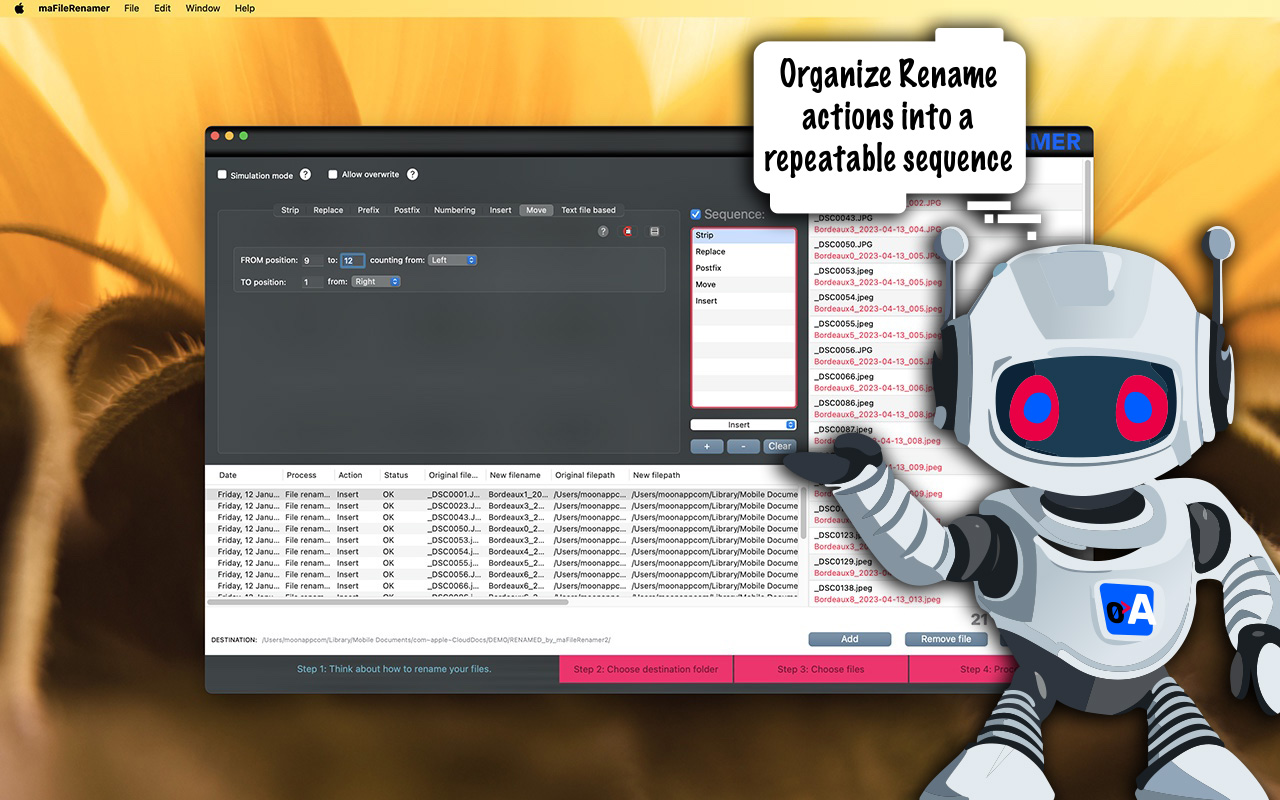
maFileRenamer on BundleHunt is a batch renaming tool that renames thousands of files in a single pass using rules — add date prefixes, strip duplicate suffixes, standardize extensions. Particularly useful for organizing photo exports and download archives before a cleanup pass.
Good for: anyone with thousands of files named "IMG_0001.jpg" through "IMG_8000.jpg" who wants to sort by date or event before deleting the unwanted ones.
Not for: users who need duplicate detection — maFileRenamer renames, it does not scan for content duplicates.
Full feature list
Rule-based renaming with preview, regex support, EXIF metadata extraction for photo renaming, sequential numbering, find-and-replace in filenames, case conversion, extension normalization. Processes entire folder trees in one pass.
Disclosure: BundleHunt sells this; we earn a commission.
RenameMe — simple drag-and-drop batch renaming
RenameMe on BundleHunt is a lighter alternative to maFileRenamer focused on clean visual rules without the regex learning curve. Drag files in, set a rule, preview the new names, click Rename.
Good for: occasional renaming tasks where you want a visual confirmation before committing — renaming a batch of downloaded assets or a set of exported reports.
Not for: high-volume regex-based renaming pipelines — maFileRenamer has more rule depth.
Full feature list
Visual rename-rule builder, live preview, undo, sequential numbering, date/time injection, text find-and-replace, case conversion. Drag-and-drop from Finder.
Disclosure: BundleHunt sells this; we earn a commission.
Recovery, clone, erase, and storage expansion
These tools solve the "I broke something during cleanup" and "I'm migrating to a bigger drive" scenarios. Buy only if you have the specific problem — they don't free space, they protect it.
Data recovery (if you accidentally deleted something):
- Magoshare Data Recovery — recovers deleted files from Mac internal and external drives
- Donemax Data Recovery — deep scan mode for drives that have been reformatted
- Fireebok Data Recovery — photo and video focused recovery
Drive cloning (migrating to a larger SSD):
- AweClone (Magoshare) — drive-cloning and recovery-oriented copy workflows
- Donemax Disk Clone — disk-copy workflows for drive migration and second-copy backups
Secure erasure (selling or giving away a Mac):
- AweEraser (Magoshare) — selective overwrite workflows for files and folders on media where overwrite erasure is appropriate
- Erazor (enSili.co) — selective secure-delete workflows; check the tool's current erase methods and your storage type before relying on it for compliance
NTFS write access (external drives formatted for Windows):
Donemax NTFS for Mac — read and write Windows drives

Donemax NTFS for Mac on BundleHunt enables full read-write access to NTFS-formatted external drives on macOS. Without it, macOS can read NTFS drives but cannot write to them — which means you can't move files off a Windows backup drive when cleaning up.
Good for: anyone who uses external drives formatted for Windows, or who is migrating files between Mac and PC as part of a storage consolidation.
Not for: users who exclusively use APFS or exFAT external drives — macOS natively reads and writes both.
Full feature list
Vendor-stated capability areas include NTFS mounting, write access, menu bar controls, and manual mount/unmount workflows. Use a native Time Machine destination format for backups unless you have verified your exact macOS version and backup workflow.
Disclosure: BundleHunt sells this; we earn a commission.
Cloud storage mounting (offload files to S3, Dropbox, SFTP):
Mountain Duck 5 — mount cloud storage as a local drive
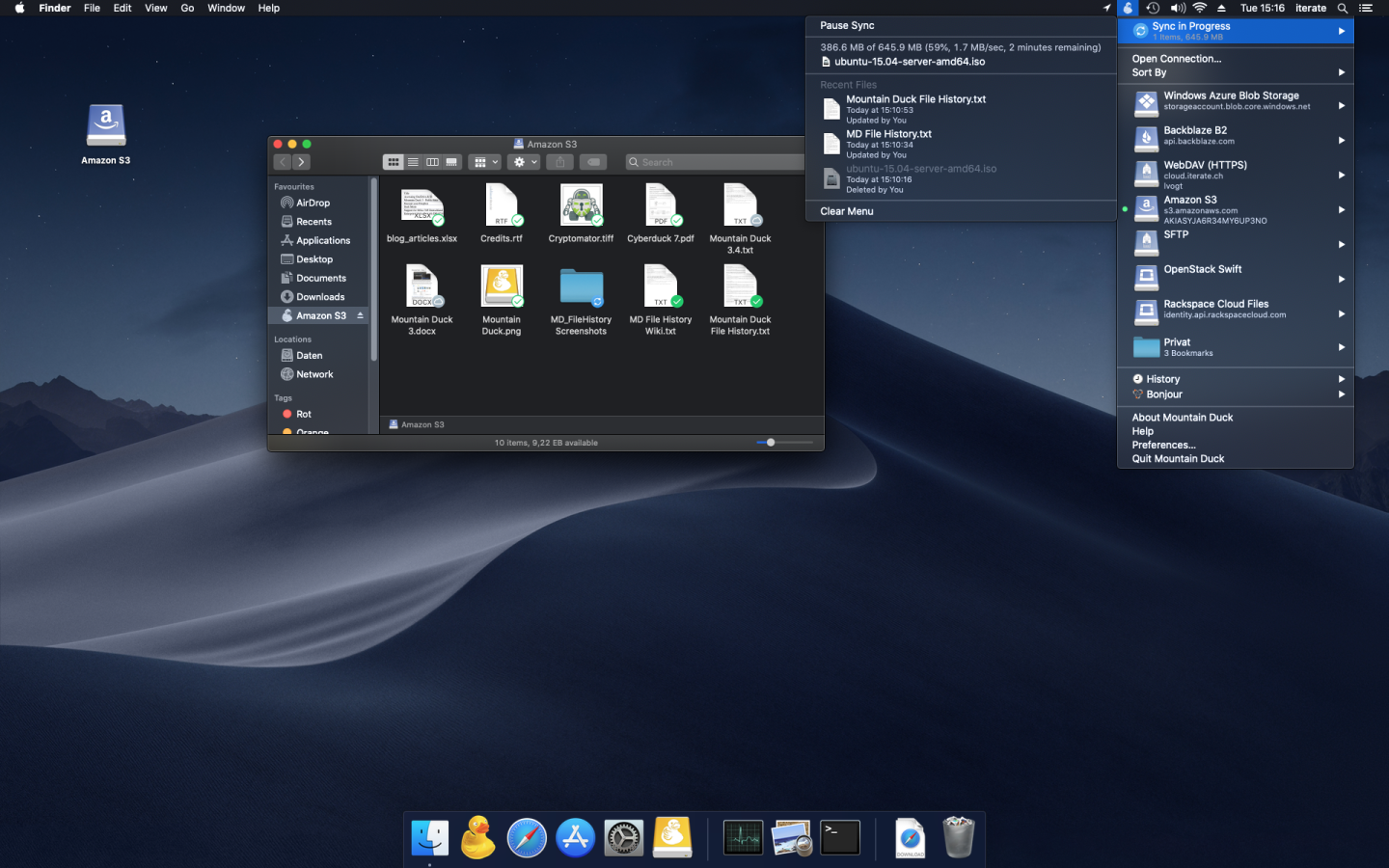
Mountain Duck 5 on BundleHunt mounts remote storage — S3, Backblaze B2, Dropbox, Google Drive, SFTP, WebDAV — as a local disk in Finder. Files appear as if they're local but stream from the cloud, which means you can move large archives off your internal SSD to cheap cloud storage and access them without keeping a local copy.
Good for: power users, developers, and anyone with large archival files (video projects, RAW photo archives) who want to offload them to cloud storage without leaving the Mac environment.
Not for: users who need offline access — files that aren't cached locally require an internet connection to open.
Full feature list
Vendor-stated capability areas include remote-storage mounting for common cloud and server protocols, Finder integration, caching, and connection management. Confirm supported providers and caching behavior on the current deal/vendor page before purchase.
Disclosure: BundleHunt sells this; we earn a commission.
Mobile data recovery and management:
- Fone Rescue (Fireebok) — recover deleted messages, photos, and contacts from iPhone backups stored on Mac
- WhatsApp Pocket (Fireebok) — export and back up WhatsApp conversation data from iPhone backups on Mac; useful for clearing full iPhone backups that are bloating Mac storage
Child posts {#child-posts}
Each child post below is a complete, standalone guide for one specific storage problem. Find your symptom and go straight to that post — you don't need to read everything here first.
- Best Mac Cleaner Apps 2026 — head-to-head comparison of MacCleanse, DMcleaner, AweCleaner, Mac PowerSuite, Memory Booster
- How to Clean Mac Caches Safely — all four cache layers with exact Terminal commands
- How to Clean Downloads Folder on Mac — the Shortcuts automation that keeps Downloads clean automatically
- How to Clean Photos Library on Mac — the Optimize Mac Storage toggle plus Smart Albums
Sources
- Apple Support: Free up storage space on your Mac
man tmutil,man diskutil,man rmon macOS Sequoia 15.4- Apple Developer Documentation: APFS Reference
Last reviewed 2026-05-17. Verified against macOS Sequoia 15.4.